Analysis jobs
The dashboard, downloads and cancelling.
Reference
Every analysis a user runs, and every ingest job the intake pipeline starts on their behalf, is a job in the analysis service. The Analysis page under Platform Management shows all of them for every user, with the packages that went in and came out, so you can see how busy the service is, find a job a user is asking about, and read the error behind a failure. Users see only their own jobs for the last week in their Analysis panel; this page is the full view.
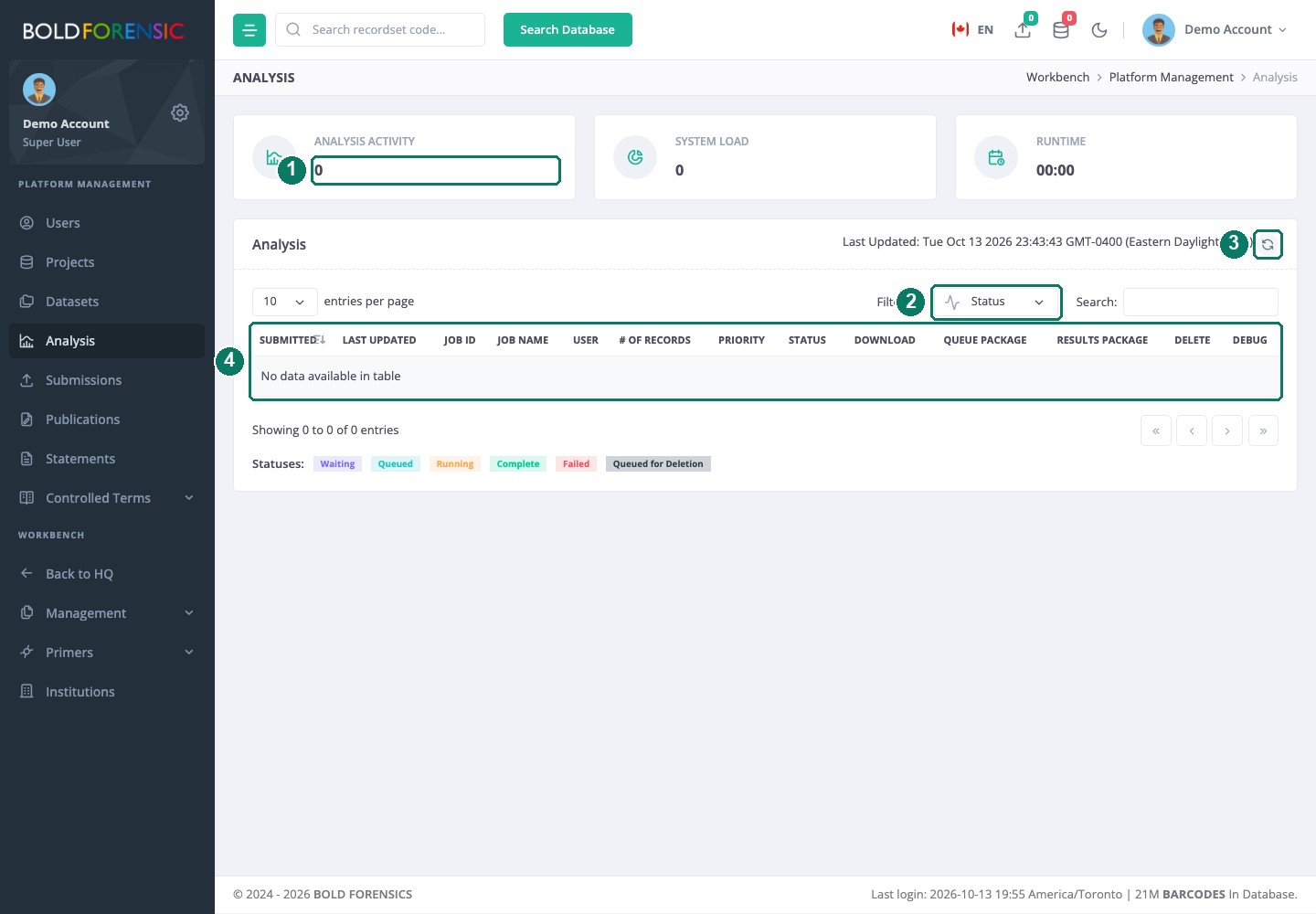
- Analysis Activity card
- Status filter
- Refresh
- Jobs table with the download, package, delete and debug columns
How it works
A job moves through five states: waiting, queued, running, complete and failed. The analysis service's scheduler checks every job that is not finished every 30 seconds and reconciles its state against the packages in storage. The worker that actually runs the job does not report back; running is inferred, meaning the job's queue package has been taken and no result has appeared yet. A job that has not finished six hours after submission, counting time spent waiting, is marked failed; if its result arrives later, the state flips back to complete. For the full model, timings and retention, see Job lifecycle.
The page asks for jobs from the last 365 days, but a job's status record is kept for a limited time after submission (seven days in the standard configuration), so in practice you see recent work.
The summary cards
Three cards summarise the jobs in view.
| Card | Figure | Chart |
|---|---|---|
| Analysis Activity | Number of jobs | Jobs by job type |
| System Load | Average CPU load across finished jobs | CPU load per job |
| Runtime | Total runtime, in seconds | Runtime against record count, one series per job type |
Load and runtime figures come from the resource statistics a job records as it runs, so jobs still waiting or queued contribute to the count only.
The jobs table
Each row shows the submission and last-updated times, the job ID, the job name, the submitting user, the number of records, the priority and the status. The status filter narrows the table to one state; the search box matches any column.
Good to know:
Last Updatedis rewritten each time the scheduler checks an unfinished job. It shows when the job was last looked at, not when its state last changed. Arunningjob whose last update keeps moving but whose state never changes is simply still being checked.
Download a job's files
The three download columns give you what the service holds for a job:
- Download saves the job's definition as JSON: the job type, parameters and submission details.
- Queue Package is the
.tarthe worker received, containing the records as they were fetched at packaging time and the parameters. - Results Package is the
.zipthe job produced.
A failed job's results package is the job's working directory as it was when the job stopped, so you can see which stage it reached and what it wrote. This is the place to read the error behind a failed ingest job that has left a submission stuck; see The submission queue. A job that failed by timeout produced nothing, so it has no results package.
The Debug button shows the record token behind the job, which identifies the exact set of records the job was built from.
Cancel and remove a job
The trash icon force-cancels a job in any state and deletes its queue package, results, metadata and report. The row's status changes to "Queued for Deletion" and the job disappears from the user's panel. Use it to clear a job that will never finish, or to remove a result that should not remain available.
Good to know: there is no confirmation step. Check the job ID and user on the row before you click. Cancelling removes the job's records and packages; it does not interrupt a container that is already executing, so a cancelled job that was mid-run finishes its work and its result is then dropped.
Users can cancel their own jobs only while waiting, complete or failed; queued and running jobs can be removed only from this page.
Limits
- Input records are fetched when the job is packaged, not when it is submitted. The record count on the row is the count at submission; the queue package shows what the job really received.
- Jobs are not run strictly in submission or priority order, and more than one job may execute at once.
- Download jobs (specimen and sequence downloads) produce a package but no report.