The administrator role
Who can open Platform Management and what it covers.
Reference
An administrator is an account that can open Platform Management, the block of pages at the bottom of the sidebar that ordinary users never see. From there you invite users, look after accounts, maintain the reference lists that records draw on, and watch over work that users submit: uploads, analysis jobs, statements and publication requests. This page explains who gets the role, what the pages cover and what the role lets you see that others cannot.
Who is an administrator
Every account belongs to one group, and the group decides what the workbench shows. New accounts join the users group when they accept an invitation. An administrator is an account in the Super User group. There is a third group worth knowing about, Attribution Only - Inactive: it holds people who are credited on records but can no longer sign in, and those accounts are left out of the users list.
There is no screen for moving an account between groups. Making someone an administrator, or taking the role away, is set up by the platform team. The change applies when that person next signs in, because the workbench reads the group once at sign-in and keeps it for the length of the session.
Administrators sign in like everyone else, with a username, a password and a six-digit authenticator code (see Your account). A few sensitive actions, such as changing who has access to a project, ask for the code again at the moment you confirm.
What Platform Management covers
The sidebar block has thirteen pages. Each is documented separately.
| Page | What it is for |
|---|---|
| Users | Invite people, edit their details, set passwords, suspend accounts and open a user's HQ. See Inviting a new user and Managing accounts. |
| Projects, Datasets | Every project and dataset on the platform, with access management and deletion of empty ones. See Overseeing projects and datasets. |
| Analysis | Every analysis job from the last year, with downloads and cancellation. See Analysis jobs. |
| Submissions | The queue of uploads waiting to be processed, and their outcomes. See The submission queue. |
| Publications | Requests to publish a project or dataset, to approve or reject. See Publication requests. |
| Statements | Every forensic statement, its PDF and reviewer feedback, and the release of stuck ones. See Statements. |
| Institutions | The list of institutions that specimens, people and projects refer to. See Institutions. |
| People | The people registry, including deponents who have no account. See The people registry and deponents. |
| Markers, Primers | The genetic markers and PCR primers that sequence records use. See Markers and primers. |
| Geography | Countries, oceans and their subdivisions. See Geography. |
| Taxonomy | The taxonomic tree that records are identified against. See Taxonomy. |
Institutions, People, Markers, Primers, Geography and Taxonomy are grouped under Controlled Terms in the sidebar, because together they are the vocabularies that keep records consistent.
A user's HQ, opened from the Users page, also carries that user's activity feed. Where the feed comes from and how fresh it is are covered in Activity reports.
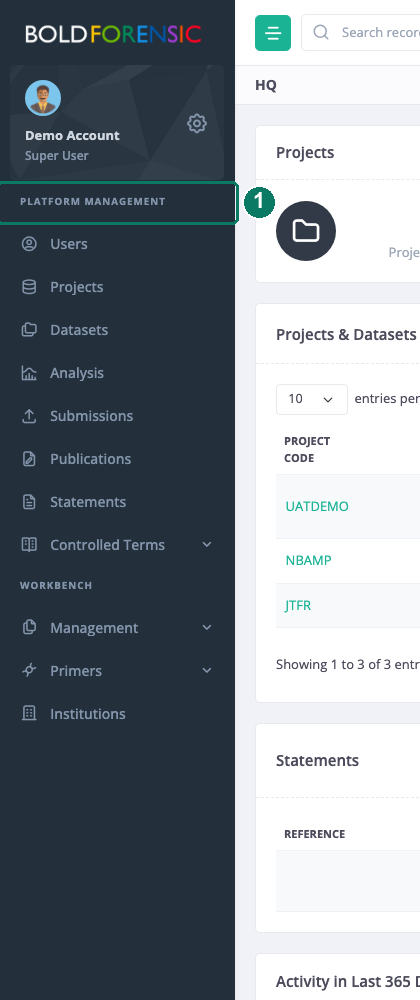
- The Platform Management pages, shown only to administrators
What administrators see that others cannot
An ordinary user sees only the projects and datasets they have been given access to, only their own analysis jobs, and only the statements they prepared or were asked to review (see Sharing and access levels). From Platform Management you see the whole platform:
- Every project and dataset, whoever created it, together with its access list.
- Every analysis job submitted in the last 365 days, by any user, including its packages.
- Every statement and its PDF, whoever prepared it.
- Every submission in the queue and every publication request.
- Every account, and each user's HQ with their recent activity.
Two things are deliberately unchanged by the role. Your own workbench, outside Platform Management, still lists only the projects and datasets you are a member of; the Projects and Datasets pages are where you see the rest. And editing a project's title or description from those pages still requires you to be a manager of that project, so add yourself through the access dialog first if you need to change one.
Good to know
Good to know: Every action taken through Platform Management is logged, with its outcome. There is no screen for reading that log; ask the platform team if you need it.
Good to know: A user who is not an administrator and opens a Platform Management address directly gets a plain "Forbidden" response rather than an error page. Nothing is wrong; the page simply is not theirs to see.