The submission queue
Statuses, what each means, and what to do about stuck submissions.
ReferenceScreenshots
Every upload a user makes, whether a specimen spreadsheet, a sequence file, a web-form specimen or an evidence package, becomes a submission in the submission queue. The Submissions page under Platform Management lists every submission from every user, not just your own. Use it when a user asks why an upload has not loaded, or to check that the queue is draining normally.
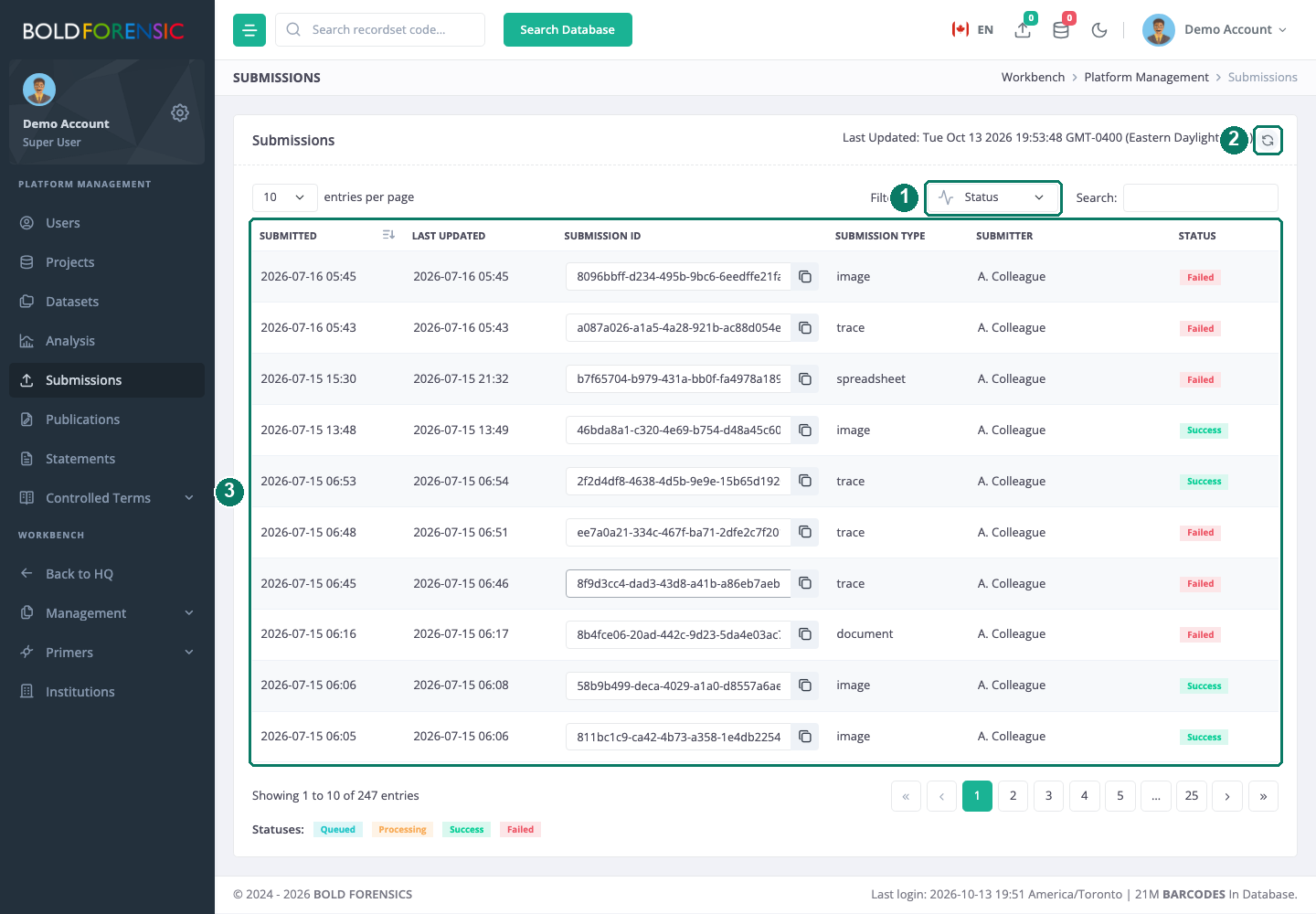
- Status filter
- Refresh
- Submissions table: every user's uploads (names shown here are masked)
What the page shows
The page is a read-only table with one row per submission: when it was submitted and last updated, its submission ID (with a copy button), the submission type, the submitter and the current status. A status filter at the top narrows the list to Queued, Processing, Success or Failed; the search box matches any column. The table shows the full history on record, not a time window.
The page does not show the detail behind a failure, and it has no retry or cancel action. That detail lives with the submitter, in the Uploads drawer in their top bar, which shows a "View error" pill with a copyable message for each failed upload. See Tracking your uploads.
The statuses
| Status | Meaning |
|---|---|
queued |
The file is stored and waiting for the submission processor, which runs every minute. Image and chromatogram packages that cannot be read yet are returned to this status and tried again, up to five times. |
processing |
The processor has claimed the submission. For batch specimens and sequences this means an ingest job is running in the analysis service; for evidence packages, files are being sent to the file store. |
success |
Records are loaded, or the files are stored and the record's feature counts have been refreshed. The upload folder is removed. |
failed |
The processor gave up. The error names the stage that failed. |
Batch specimen uploads can also be rejected before they are ever queued: if the preflight check finds row-level errors, the user sees them at once and no submission row is created, so a rejected spreadsheet never appears on this page.
Reading an error
A failed submission records three things: the stage at which it failed, a message, and the time. The stage tells you where to look.
| Stage | Where it went wrong |
|---|---|
intake |
The package could not be read or its metadata could not be found. |
preprocessing |
The rows could not be normalised into records before the ingest job. |
analysis |
The ingest job in the analysis service did not complete. Its package is on the Analysis jobs page. |
db_load |
The records came back from the ingest job but could not be written to the record store. The load summary gives processed, inserted, updated and failed counts. |
processing |
A failure in the processor itself that fits none of the stages above. |
biostor_upload |
One or more evidence files could not be stored. |
Good to know: an image or chromatogram package can fail after some of its files were already stored. Check the record's evidence before asking for the whole package again, or the user may attach duplicates.
A submission stuck at queued or processing
There is no timeout on processing, so a submission can sit there indefinitely if the step it is waiting on never resolves. What you can do is diagnose, then ask the user to act.
- Stuck at
queued. The processor claims one submission per type each minute, so a long queue of one type drains slowly. If nothing of that type has moved for a while, treat it as a platform problem. - Stuck at
processing, batch specimens or sequences. Open the Analysis jobs page and find the submitter'sspecimen-data-ingestorsequence-data-ingestjob. If that job has failed, download its results package to read the error. If no such job exists, the submission is waiting on a job it will never find and will not move on its own. - Stuck at
processing, web-form specimen. Web-form specimens are processed within the upload request, which waits up to 30 seconds. If the user was told the upload timed out, the record may still have loaded. Search for it before asking for a resubmission, otherwise you invite a duplicate. - Ask the user to resubmit. Nothing on this page retries or cancels a submission. A fresh upload is a new submission and is processed on its own.
Merged batches
When one user has several specimen spreadsheets queued at the moment the processor runs, they are merged into a single ingest job. This has two consequences you should recognise when reading the page. One bad spreadsheet fails the whole merged batch, so a user may see several failures caused by a single file. And the database-load summary is recorded against the first submission in the batch, so look there for the counts. Users who need their files handled separately should wait for one to finish before uploading the next. See Batch specimen upload.
Good to know: the pipeline drops invalid taxonomy, geography and vocabulary values and still loads the record; such values do not cause a failure.