Managing accounts
Editing details, setting a new password, suspending an account, and what suspension does not do.
How-to
The Users page under Platform Management lists every account on the platform and is where you keep accounts in order: correcting someone's details, setting a new password when they are locked out, looking at what a user has been doing, and suspending an account that should no longer be used. This page covers each of those and, just as importantly, the account changes that cannot be made from any screen.
The users list
Each row shows the account's ID, username, name and email, role (the group it belongs to), institution, when it was last updated and its status. Attribution-only accounts are not listed.
Use the Status filter to choose which accounts you see. It opens on Active; the other choices are Inactive, Suspended, Remote, or all statuses. Search matches any column. Refresh reloads the list after you have made changes elsewhere.
To download part of the list, select the rows you want and choose JSONL. The file, users.jsonl, has one line per account with eight fields: id, username, fullname, email, role, institution_name, last_updated and status. It is built from what is on screen, so filter and select first.
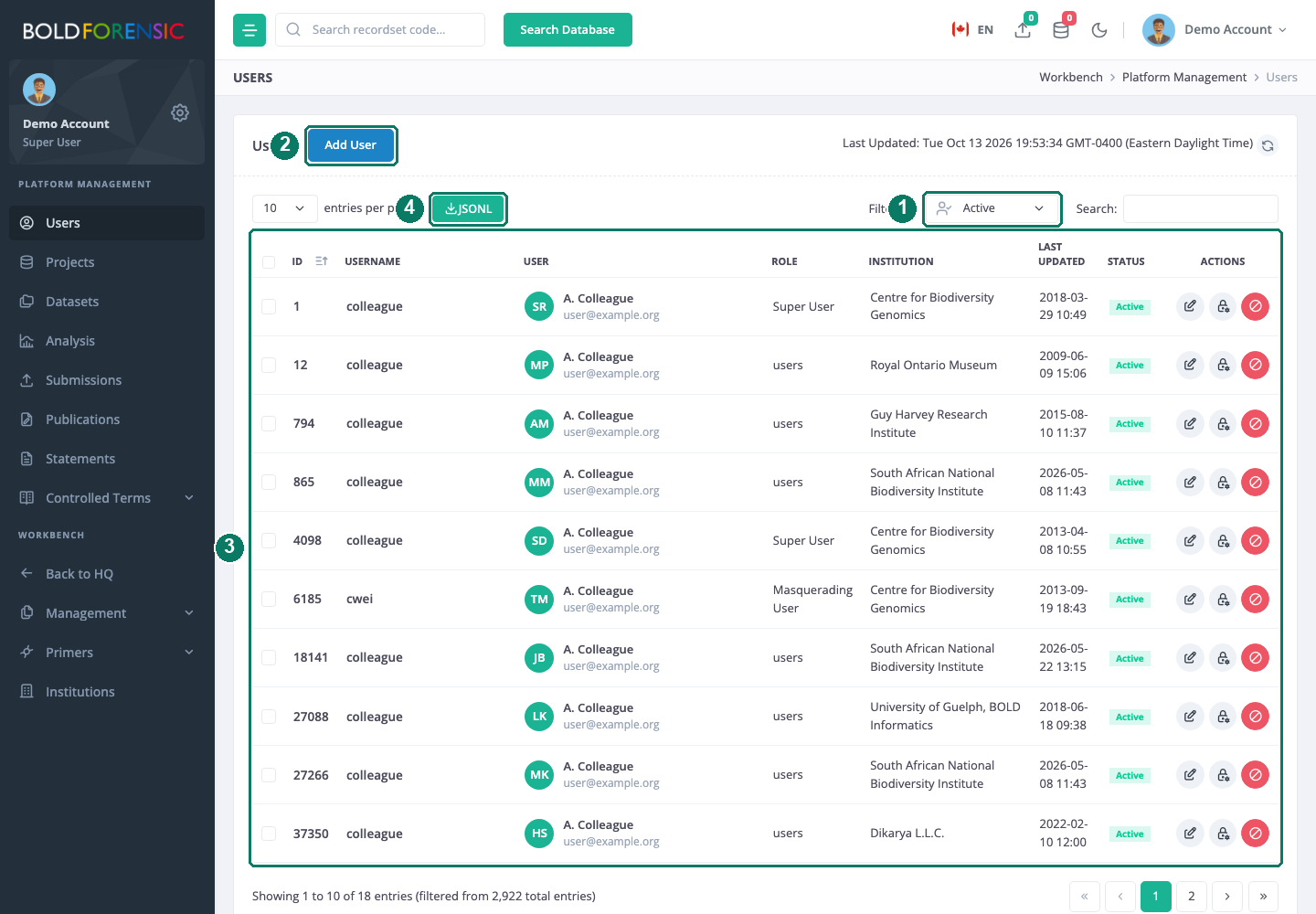
- Status filter
- Add User sends an invitation
- Users table with the edit, password and suspend icons on each row (names shown here are masked)
- JSONL download of the selected rows
Edit a user's details
The edit icon on a row opens the user's details: full name, address, institution and email. Role is shown but cannot be changed here. The full name is stored as first, middle and last names, split from what you type.
The institution must be typed exactly as it appears in the institutions list. Text that matches no institution is not rejected; the institution is cleared instead, so check the row after saving. The list of institutions is maintained under Controlled Terms; see Institutions.
Deponent details (identity number, employer, appointment date, qualifications) are not part of this dialog; they are edited in the people registry. See The people registry and deponents.
Set a new password
The lock icon on a row lets you type a new password twice and save it. Use this when a user is locked out and the email reset is not an option for them.
The platform does not enforce a password policy, so choose a strong one yourself. The user is not told that the password changed, and any session they already have open carries on; tell them the new password directly.
Limit: Avoid
+,&and%in a password you set here. These characters are not handled correctly by the form, and the saved password will differ from the one you typed.
A new password does not help a user who has lost their authenticator device; for that, contact the platform team.
View a user's HQ and activity
Click a username to open that user's HQ, the same page the user sees when they sign in, viewed with their data. It shows how many projects and datasets they belong to, the ones they have used in the last 365 days, a map, and their activity feed: events on the recordsets they are a member of, over the last year. The feed is built hourly from the platform's activity log, so the most recent hour may be missing; see Activity reports.
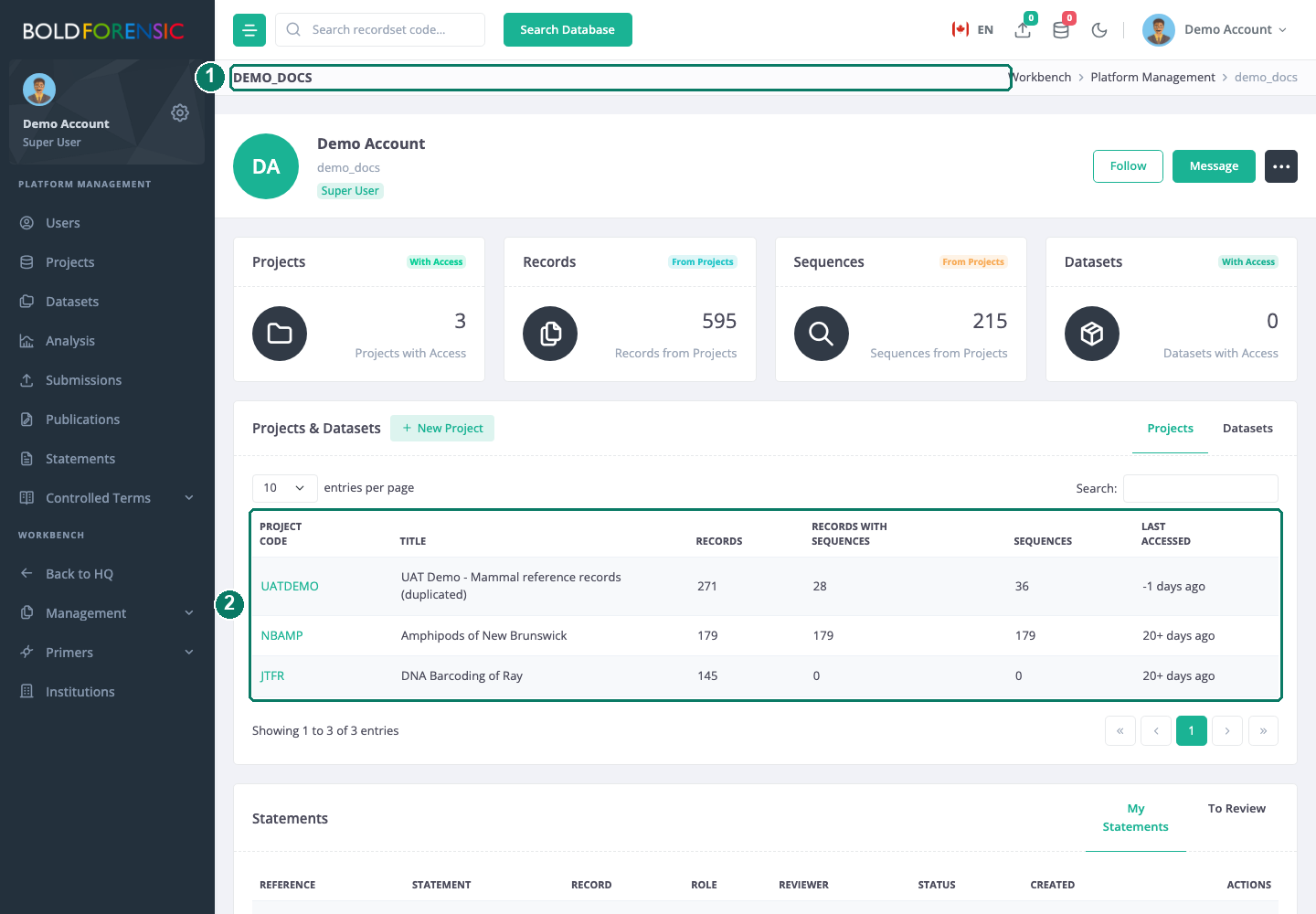
- The user's name and group
- The projects and datasets the user belongs to
Good to know: The statements card on a user's HQ shows your own statements, not theirs. To see the statements a user prepared, use the Statements page under Platform Management instead (Statements).
Suspend an account
The red cancel icon on a row opens a confirmation; choose Suspend to change the account's status to suspended.
Suspension blocks new sign-ins: the next time the person tries to sign in they are told to contact support. If the person is signed in at the moment you suspend them, that session is not cut off; it ends when it would have expired anyway. If the account needs to be closed immediately, suspend it and then tell the platform team.
Once an account is suspended, the cancel icon is greyed out for it. The account stays in the list under the Suspended filter, and its membership of projects and datasets is unchanged.
What cannot be done from these screens
Several account changes have no screen. For any of these, contact the platform team:
| You want to | Why there is no screen |
|---|---|
| Reactivate a suspended account | Suspension is one way from the Users page |
| Change a user's role or group | Role is read-only in the edit dialog |
| Make someone an administrator | Group membership is set up by the platform team; see The administrator role |
| Reset or replace a user's authenticator | No reset exists on the platform |
| See, resend or withdraw an invitation | Invitations leave no record once sent; send a new one instead (Inviting a new user) |
Good to know
Good to know: The user is not told about any change you make here. Agree it with them first, particularly a new password.
Limit: Values containing
+,&or%in the edit dialog (an address, for example) are not saved correctly. Rephrase them.