Tracking jobs and reading reports
The Analysis panel, job states, the report page and the result package.
ReferenceScreenshots
Once you submit an analysis it runs on a separate service, and the only place you follow it in the workbench is the Analysis panel in the top bar. This page explains the panel, the job states, how long a job can wait, what cancelling and deleting actually do, and how to read the report and download the package.
The Analysis panel
Open the panel with the database icon in the top bar. The badge on the icon is the number of jobs listed. The panel lists your own jobs from the last 7 days, and for each shows the method's internal name (for example distance-summary), the time you submitted it, the job ID, its status, the number of records it was given and a progress bar. The header line summarises how many jobs you have and how many are not yet complete.
The list refreshes itself every 30 seconds, when you use the refresh button in the panel header, and straight after you submit a job.
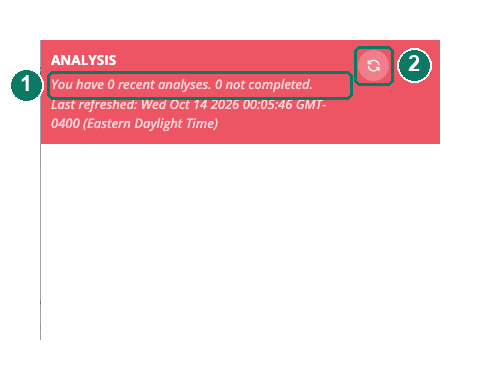
- Summary of your jobs
- Refresh
Job states
| Status | Progress bar | Meaning |
|---|---|---|
WAITING |
empty, no colour | The job is recorded but its records have not yet been fetched and packaged. |
QUEUED |
one third, blue | The records were fetched and the package is waiting for a worker. |
RUNNING |
two thirds, amber | The package has been taken by a worker and no result has appeared yet. |
COMPLETE |
full | The result package is available. The report and download icons appear. |
FAILED |
full, red | The job ended with an error, or it did not finish within its time limit. |
A job's time limit is 6 hours from submission, and time spent waiting and queued counts towards it. The panel does not show why a job failed, and a failed job's files cannot be downloaded from the workbench. If a job fails and you need the reason, ask an administrator.
How long a job takes to be picked up
A scheduler checks for WAITING jobs every 30 seconds, fetches their records and packages them, which makes them QUEUED. It admits a job only while fewer than 10 packages are already queued, so on a busy platform a job can sit at WAITING for a while. A worker on the analysis host, running on a schedule set on that server (documented as every minute), takes the oldest queued package each time it runs, builds the method's container image and runs the method. Time at QUEUED depends on how many packages are ahead of yours and how long each takes; jobs are not guaranteed to run in submission order.
RUNNING is inferred from the package having left the queue with no result yet; the worker does not report it. A job that fails without leaving a result can therefore show as RUNNING until its time limit expires. See Job lifecycle for the mechanics.
Cancel or delete a job
The X button on a job opens a confirmation. What it does depends on the job's status:
- A
WAITINGjob is cancelled: it is removed from the list and never runs. Cancel is only possible at this stage. If the scheduler is packaging the job at the same moment, it can still run. - A
QUEUEDorRUNNINGjob cannot be cancelled. The button shows a warning instead. You have to wait for it to complete or fail. - A
COMPLETEorFAILEDjob is deleted: it is removed from the list and its stored packages are removed from the analysis service. Download the result package first if you want to keep it.
Cancelling never stops a job that is already executing, and there is no "cancelled" status: a cancelled job simply disappears.
Read the report
On a COMPLETE analysis job, the eye icon opens the job's report (analysis_report.html) in a pop-up window. The report contains:
- the job ID and the recordset's title and description;
- the parameters as you submitted them, which is not always what the method applied (see Known limitations of the methods);
- the number of records given to the job and the number that survived the filters;
- timings for each stage and the container's CPU and memory use;
- the method's charts and tables;
- a list of the files in the result package.
Export jobs (specimen-download and sequence-download) produce no report. The eye icon still appears on them but opens a "Report Preview Unavailable" page; use the download icon instead.
Download the result package
The download icon on a COMPLETE job saves <method>.<job_id>.zip. For an analysis it holds the HTML report, usually a PDF copy of it (the PDF is produced on a best-effort basis), and the method's output files (tables, a tree, an alignment, and so on, as described on each method's page). For an export it holds the requested data file.
Good to know: A job stays in the panel for 7 days. After that there is no way for you to reach its report or package from the workbench, so download anything you need while the job is listed.