Your account
Accepting an invitation, the authenticator app, signing in, resetting a password, your profile and deponent details.
How-toScreenshots
Every workbench account is created by invitation. This page covers accepting the invitation, the authenticator app, signing in and out, passwords, and your profile. The profile matters beyond your name, because the deponent details it holds are what expert statements are built from.
How accounts work
There is no sign-up page. A platform administrator sends an invitation to your email address, and the link in it is the only way to create an account (see Inviting users). Once registered you belong to the users group, and project owners can add you to their projects and datasets.
Signing in needs your username, your password and a six-digit code from an authenticator app on your phone or computer. The code changes every 30 seconds and proves that whoever has your password also has your device. Because records here may become evidence, this second factor is required for every account and cannot be switched off.
Accept your invitation
- Open the link in the invitation email. It is valid for 12 hours; after that, ask the administrator for a new one.
- Your email address is already filled in. Choose a username and a password. Both must be unique on the platform.
- Choose Create Account.
- A QR code appears. Scan it with an authenticator app that generates time-based codes; the entry is labelled "Forensic Workbench". The code is shown once only, so scan it before leaving the page.
Limit: Avoid
+,&and%in your password. The forms that set a password do not handle these characters correctly: the saved password differs from the one you typed, and signing in fails. Letters, digits and other symbols are fine.
The strength meter is advice only; the platform does not enforce a password policy.
Sign in
On the Login page enter your username and password, type the six digits currently showing in your authenticator app and choose Sign In. You land on HQ, or on the page you were trying to open when the workbench sent you to sign in.
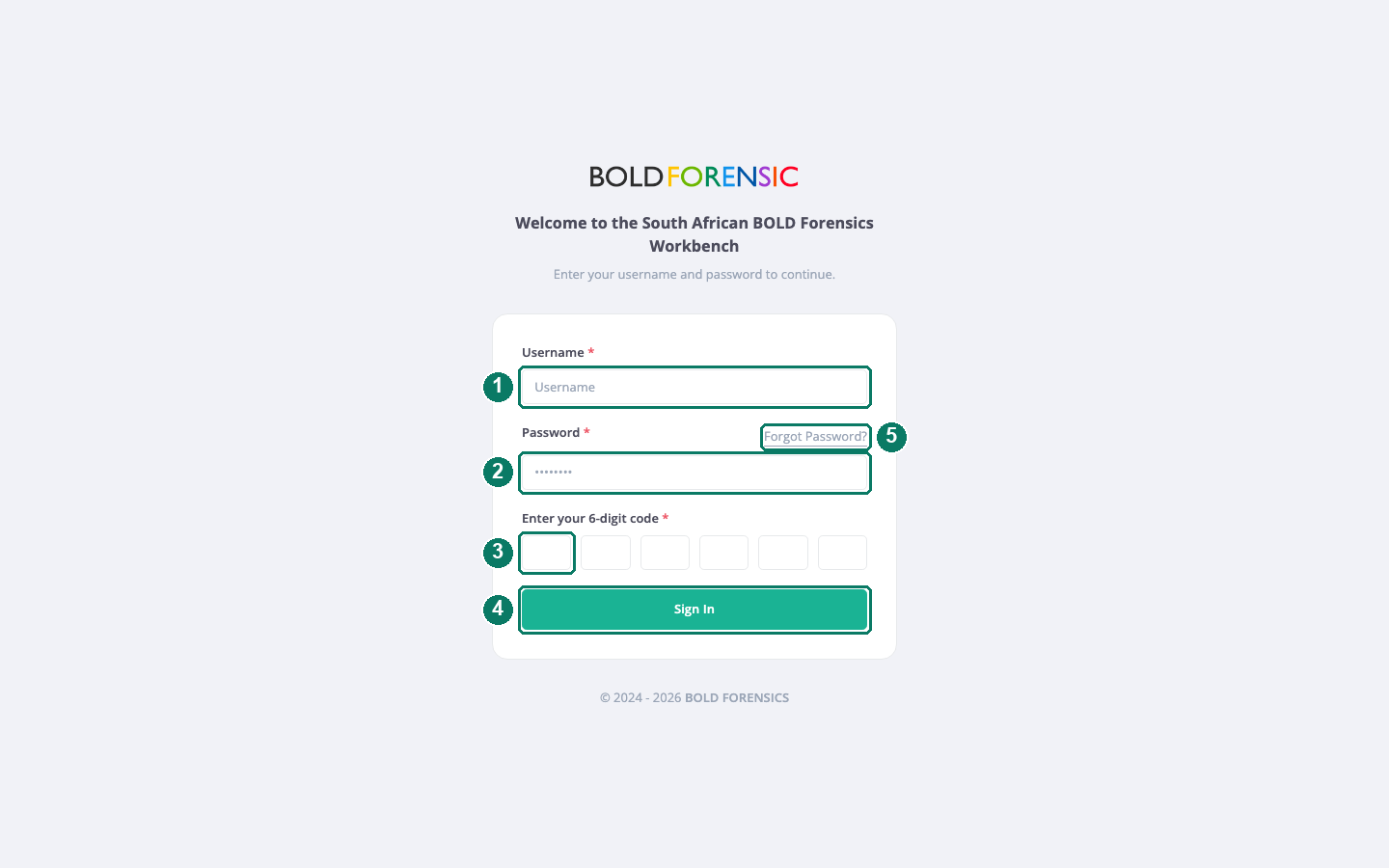
- Username
- Password
- The six boxes for the current authenticator code
- Sign In
- Forgot Password, for a reset by email
| Problem | What to do |
|---|---|
| Code rejected | Only the code for the current 30-second window is accepted. Type the digits shown right now; the code boxes do not accept pasting. |
| Codes never work | Codes are computed from the time, so the device's clock must be accurate; set it to update automatically. |
| Lost or replaced device | No self-service reset exists, and a password reset also needs a code. Use the Email Us link on the reset page to contact support. Add the authenticator to a second device in advance (see Security below). |
| "Contact support" message | Your account has been suspended or made inactive. Ask your administrator. |
Reset a forgotten password
- Choose Forgot Password? on the login page and enter your email address. The page reports success even when no email was sent; if nothing arrives, check the address matches your profile, then contact support.
- Open the link in the email within 2 hours.
- Enter your current authenticator code and the new password twice, then choose Update Password. The link stops working once used.
Change your password
Open the user menu (your avatar in the top bar) and choose Security. On the Change Password tab enter the old password and the new one twice.
The Multi-Factor Authentication tab in the same dialog shows your QR code again so that you can add the authenticator to a second device. You cannot change the secret or turn the second factor off.
Sessions and signing out
A session ends after 24 hours without activity, and after 14 days in any case. Every page you open resets the inactivity timer. If the session expires while a page is open, a sign-in dialog appears and the page reloads once you sign in again. Log Out in the user menu ends the session in that browser only.
Your profile
User menu, then Profile, opens the User Profile dialog with three tabs.
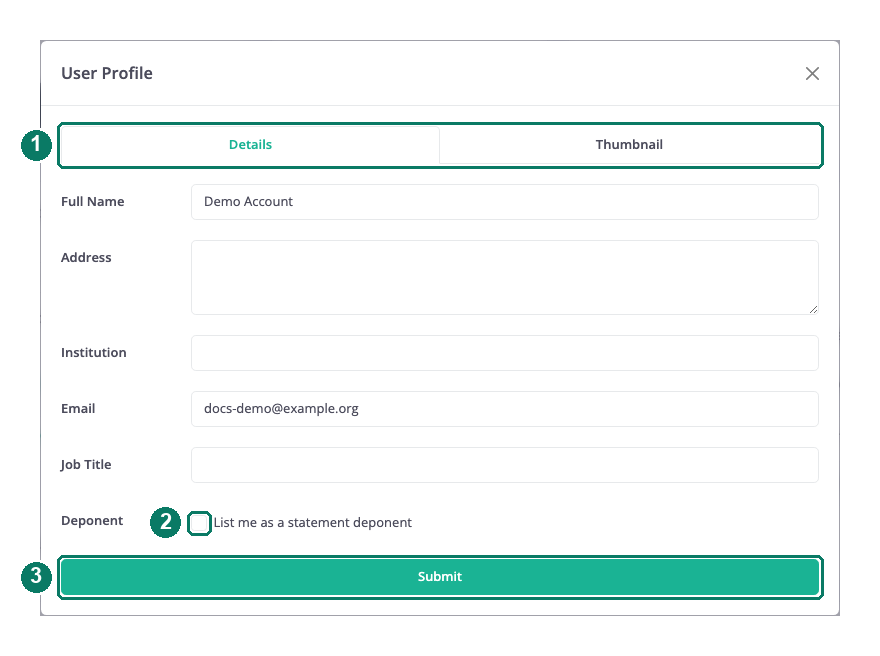
- Details and Thumbnail tabs; the Deponent tab appears once you are listed as a deponent
- List me as a statement deponent
- Submit
- Details: Full Name (split into first, middle and last names automatically), Address, Institution, Email and Job Title. Institution suggests names after three characters; pick one, because text that matches no listed institution is discarded on save. A new account's name is its email address until you change it.
- Deponent: appears when you tick List me as a statement deponent on Details. It holds ID Number, Date of Birth, Gender, employer details, Appointment Date and numbered qualifications of up to 256 characters each. Statements take the deponent's details from here (see Statements and deponents).
- Thumbnail: pick one of five preset avatars. There is no photo upload.
Primary record fields
User menu, then User Preferences: the Primary Record Fields list sets which columns record tables show first. processid and sampleid are always included.
Good to know: The Language, Timezone and Email Notification settings in the same dialog are saved but have no effect at present. Changing your password does not end sessions open in other browsers. A changed email address is not verified.