Tracking your uploads
Statuses, error details, and what each means.
ReferenceScreenshots
Every queued submission, whether a spreadsheet, a FASTA, a web-form specimen or an evidence package, is a row in the submission queue, and you can follow it in two places: the uploads drawer in the top bar, which lists all of your submissions, and the Recent Uploads table on a project's batch specimen page, which lists your submissions for that project. Both show the same statuses and the same error details.
The uploads drawer
Open it from the uploads icon in the top bar. Each entry shows the submission type, the file name where there is one, the submission ID, the time it was created, the status in capitals and a progress bar. The drawer refreshes itself at the interval set in your user preferences (see Your account); there is also a refresh control. The Upload button at the top of the drawer opens the evidence-package modal.
A failed submission carries a View error pill. It opens a modal where the message is readable at full size and can be copied, together with the stage at which the failure happened and the raw detail.
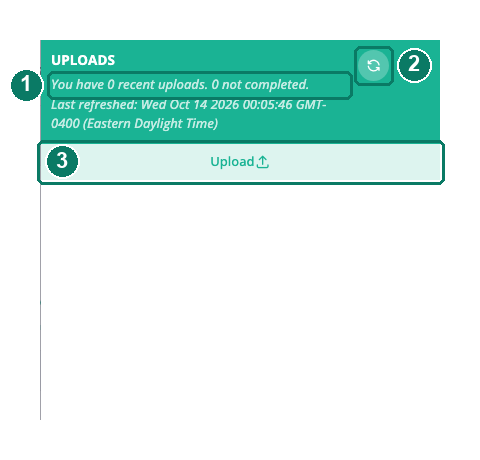
- Summary of your recent submissions
- Refresh
- Upload opens the evidence-package dialog
The per-project table
At the bottom of Data Upload > Batch Specimen is a table of this project's submissions with File, Type, Status and Submitted columns. It refreshes every 10 seconds and has its own refresh button. View error opens a detail modal with the file, date, status, submission ID, the error message, a per-row problem table where one exists, and the raw detail under a disclosure.
Statuses
| Status | Progress bar | Meaning |
|---|---|---|
queued |
33% | Accepted and waiting for the processor, which runs once a minute |
processing |
66% | The processor has picked it up. For batch specimens and sequences this covers the whole time the ingest job is running and being polled |
success |
100% | Records loaded, or files stored and the record's counts refreshed. The upload folder is removed |
failed |
100%, red | Something went wrong. The error names the stage. The upload folder is kept |
Every error has a source, which tells you where in the route it happened:
| Stage | What was happening |
|---|---|
intake |
Reading your file or package before anything was sent on |
preprocessing |
Converting rows to the platform's data model |
analysis |
The ingest job itself failed, or could not be found |
db_load |
The record store refused the load |
processing |
A general processing failure |
biostor_upload |
BioStor did not accept one or more files |
Full definitions are in Statuses.
When something stays in a state
Stays queued for more than a few minutes. The processor runs every minute and handles one evidence package per type per pass, so a queue of packages drains one at a time. An image or chromatogram package that cannot be read yet is returned to queued and retried, up to five times, before it fails.
Stays processing. For batch specimens and sequences this is normal while the ingest job runs; expect minutes. There is no timeout on processing. If a submission has been there for an unreasonable time, the ingest job may have been lost; the submission will not fail on its own, so report the submission ID to your administrator.
failed after some files were stored. Image and chromatogram packages are sent file by file. If a later file fails, the earlier ones are already in BioStor and attached to their records. Check the records before re-uploading the whole package, or you will attach duplicates.
Nothing appears at all. A batch spreadsheet that fails its preflight is rejected before it is queued, so it never reaches the drawer. The errors are on the batch page. A web-form specimen that loads within its 30-second wait does appear, already at success.
Good to know
Good to know: You see only your own submissions. A project manager cannot see a colleague's uploads in the drawer or the table.
Good to know: Several batch spreadsheets queued by the same person within one minute are merged into one ingest job, and the load result is recorded against the first submission's ID. If a later one shows no result of its own, look at the first.