Batch specimen upload
Downloading the template, filling it in, preflight checks, uploading, and updating specimens in bulk.
How-toVideo walkthrough
Batch specimen upload loads many specimen records into one project from a single spreadsheet. Use it when you are registering a set of new specimens, or when you need to change the same fields on many existing records at once. The page is Data Upload > Batch Specimen in a project's side menu, or the button on an empty project. It is available for projects only, not datasets.
How it works
The page has three parts: a Download Template card, an Upload Spreadsheet card and a Recent Uploads table for the project.
When you upload, the file is checked immediately (the preflight). If it passes, it is queued and you are given a submission ID. A background processor then converts your rows to the platform's data model, runs them through the specimen-data-ingest job and, when the job completes, loads the records into the record store. Loading needs a level that allows editing specimens in the project: Project Manager, Edit All or Edit Specimens/Read Sequences, or a platform administrator. See Sharing a project or dataset for what the levels mean.
Download a template
Pick the upload type and the field set, then download in the format you prefer.
| Choice | Options | What changes |
|---|---|---|
| Upload type | New records or Update existing | Update adds processid as the first column; New leaves it out because the platform generates Process IDs |
| Template fields | Minimum or Full | Minimum is 20 curated identity, taxonomy and collection fields; Full is every specimen, collection, taxonomy and forensic-extension field |
| Format | TSV, CSV or Excel (.xlsx) |
The same header row in each |
System-generated fields such as record_id, specimenid, taxid and geoid are never in a template. Download field reference gives you the field dictionary as a TSV; see also Field dictionary.
Fill it in
- Keep the header row as downloaded. The identifier column may be headed
sampleid,sample_idorsample id; likewiseprocessid,process_idorprocess id. - For new records,
sampleid,country/ocean,phylumandinstmust have a value on every row. Do not include aprocessidcolumn; it will be rejected. - For updates, every row needs the
processidof the record it changes. - Use the values in Controlled vocabularies for vocabulary fields. Taxonomy, place names and institutions are resolved against the platform's registries during ingest.
Upload and read the preflight
- On the Upload Spreadsheet card, choose the file (
.tsv,.csvor.xlsx). - For updates, leave Restrict to this project ticked unless you intend to change records that live in other projects. It is on by default.
- Submit. The result appears in a modal and in the Most Recent Upload Result card.
The preflight checks, in order: the file can be read; it has a header row and data rows; it has a sampleid column; the New/Update choice matches the file; in New mode the required columns are present and filled on every row; and, for every row, the record store confirms the identifier exists (updates) or can be created (new) and that you may write to it.
A structural problem gives one message, such as The spreadsheet is missing a 'sampleid' column. Row problems give a table with Row, Sample ID, Process ID and Problem, 20 rows per page, with a Download TSV button so you can fix the file against the list. Row numbers count the header as row 1. Any failing row rejects the whole file; nothing is queued until every row passes.
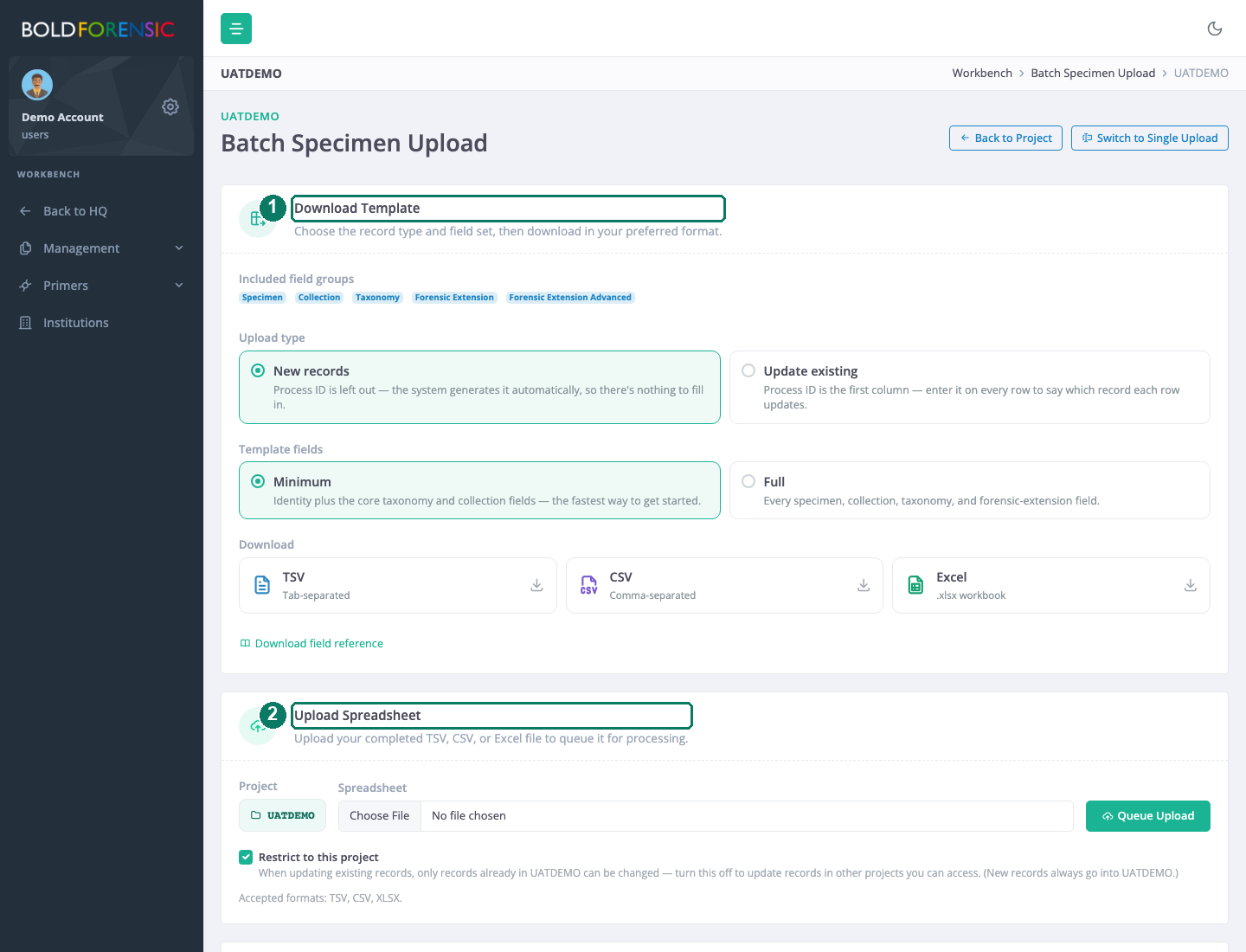
- Download Template: upload type, field set and format
- Upload Spreadsheet, with the project restriction for updates
What the ingest job checks
Once queued, the job validates each record: the data type and format of every field, the required fields, uniqueness of sample and process IDs within the file, and controlled vocabulary, taxonomy and geography values. It also drops fields outside the allowed field groups and resolves taxonomy, geography, institution and primer identifiers.
Good to know: A vocabulary, taxonomy or place value the platform does not recognise is removed from that record, and the record still loads without it. The batch is not rejected for this. Check loaded records for blank fields you expected to be filled, and correct the value with an update.
Update existing specimens in bulk
- Download an Update existing template.
- Enter the
processidon every row and fill only the columns you want to change, plus any you want to keep. - Upload with Restrict to this project ticked.
Each row is upserted against its Process ID. The preflight confirms the record exists and that you may edit it; with the restriction on, a record outside this project is rejected.
Track the result
The Recent Uploads table at the bottom of the page lists your submissions for this project and refreshes every 10 seconds. View error opens the per-row errors and the raw detail. The uploads drawer in the top bar shows the same submissions across all projects; see Tracking your uploads.
Good to know
Good to know: Spreadsheets you queue within the same minute are merged into one ingest job. One bad file then fails the whole set, and the load result is recorded against the first submission. Wait for one file to reach
processingbefore queuing the next when you need separate results.Good to know: The New/Update choice and the project restriction are enforced at preflight only. A record changed by someone else between preflight and the load is not re-checked.