Sharing a project or dataset
Adding people, what each access level allows, and when changes take effect.
How-toScreenshots
A project or dataset is visible only to the people on its member list, each at a named access level. The manager who created it adds colleagues from the sharing modal, chooses their level and can change or remove them later. This page explains who can share, what each level actually allows, and when a change takes effect.
How it works
Membership is per recordset. Being a member of a project does not give you access to a dataset that contains some of its records, and the reverse is also true. Platform administrators (the Super User group) can open any recordset without being a member.
Each member has one level. Managers can do everything on the recordset, including sharing it. Edit levels decide whether the record store accepts your changes to specimen data or sequences. The read levels control nothing beyond membership: any member, at any level, can see every record in the recordset, including its sequences and attached files.
Good to know: "Read Specimens Only" does not hide sequences. If someone must not see a project's sequences, do not add them to the project; put the records they need into a dataset instead.
Who has access
The people icon in the top bar of the console lists every member with their name, email address and level. Every member can see this list, including everyone else's email.
Add or remove people
Only a Project Manager or Dataset Manager sees the Revise User Permissions link at the bottom of the people menu, and only a manager can save changes.
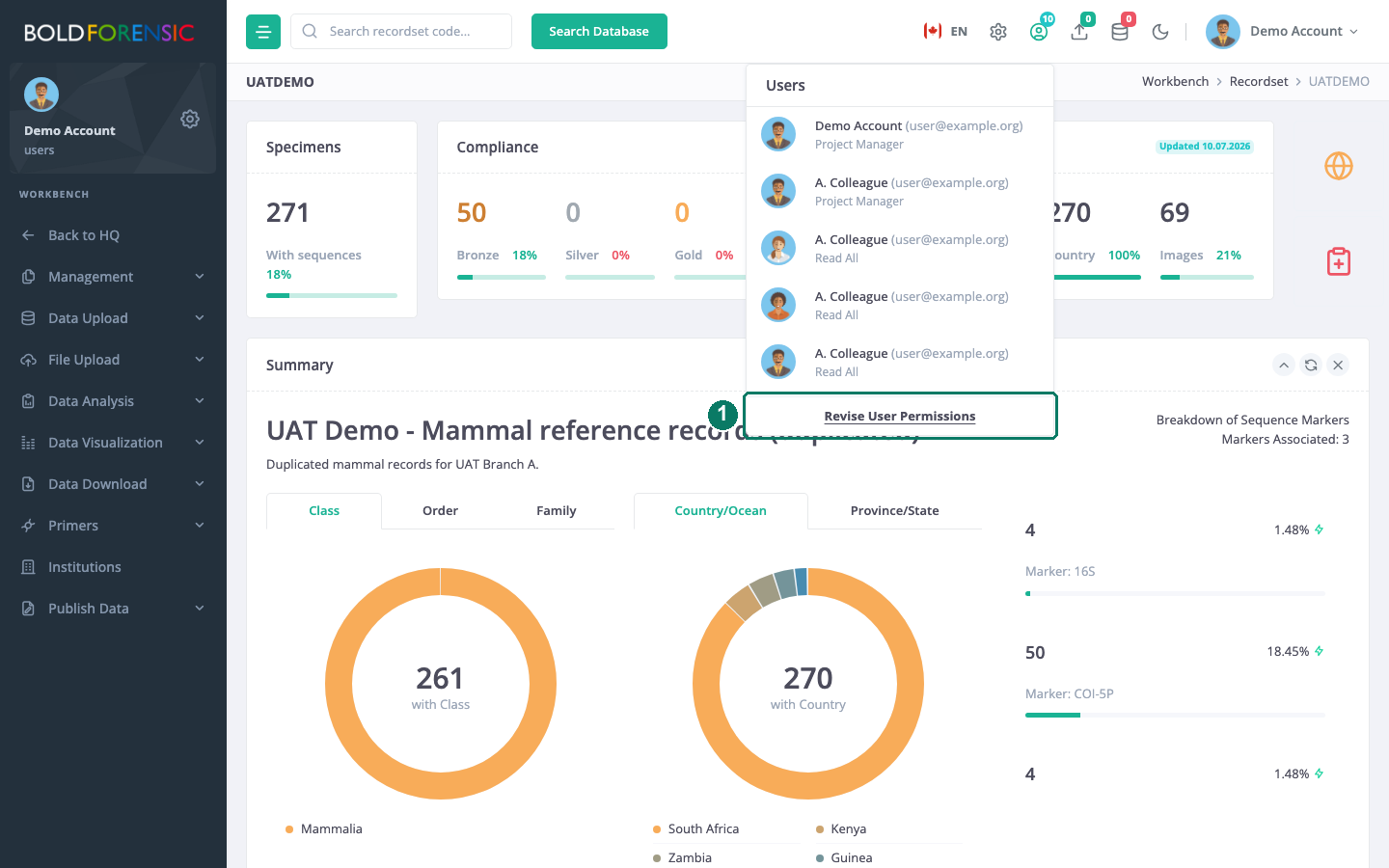
- Revise User Permissions, shown to managers only
- Open the people menu and choose Revise User Permissions.
- In the search box, type at least three characters of the colleague's full name and pick them from the suggestions. They are added at
Read Specimens Only. - Change anyone's level with the drop-down on their row.
- Remove someone with the bin button on their row.
- Choose Save changes. Nothing is applied until you do.
You cannot remove yourself or lower your own level below manager. A person who is already a member is not added twice.
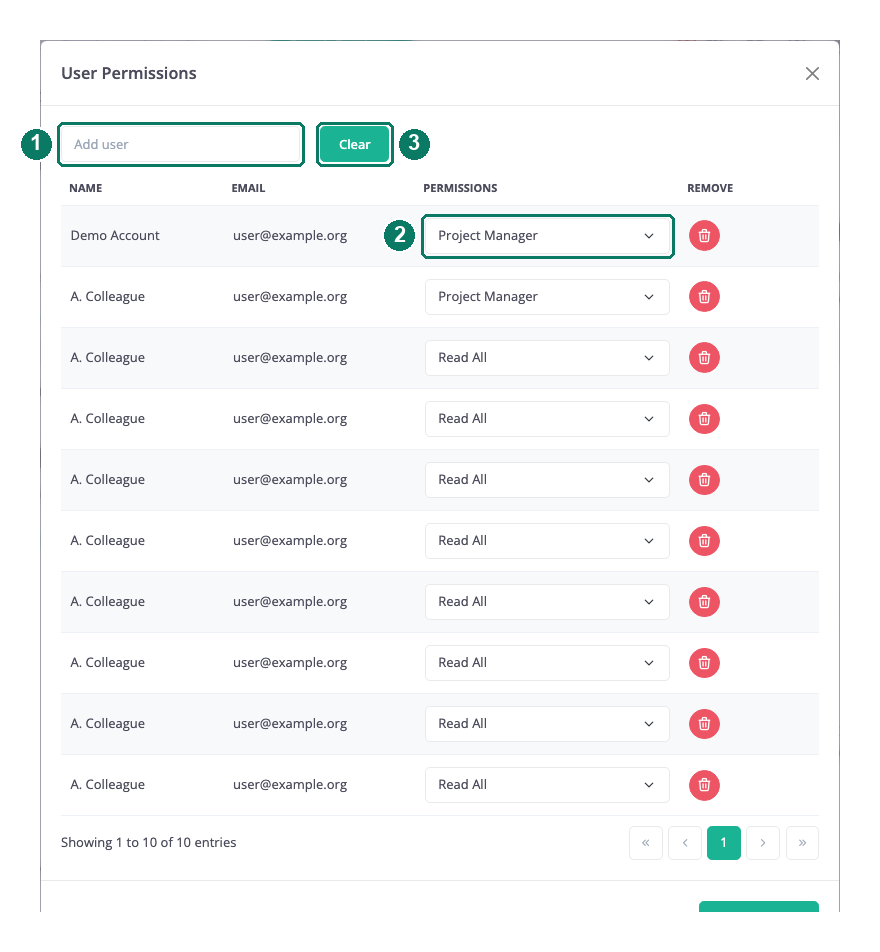
- Add a colleague by name
- Access level for each member
- Clear
Access levels
Projects
| Level | Specimen data | Sequences | Can also |
|---|---|---|---|
Project Manager |
Edit | Edit | Share, move records, submit publication requests |
Edit All |
Edit | Edit | |
Edit Specimens/Read Sequences |
Edit | Read | |
Read Specimens/Edit Sequences |
Read | Edit | |
Read All |
Read | Read | |
Read Specimens Only |
Read | Read (not hidden) |
Datasets
| Level | Specimen data | Sequences | Can also |
|---|---|---|---|
Dataset Manager |
Edit | Edit | Share, add and remove records, submit publication requests |
Read All |
Read | Read | |
Read Specimens Only |
Read | Read (not hidden) |
"Edit" means the record store will accept changes you submit; the record detail's Edit record button is shown to Project Manager, Edit All, Edit Specimens/Read Sequences and Dataset Manager. Editing a specimen is done from its project's console. A fuller comparison is in Access levels at a glance.
When changes take effect
Adding someone or changing their level applies as soon as you save. Removing someone does not: the record store keeps a cached copy of each user's access list, and that copy is refreshed only for people who are still on the list. A removed member keeps read access to the records until their cached list expires, which can take up to about 23 hours.
Limit: Treat removal as taking effect the next day. There is no way in the workbench to make it immediate; if access must end at once, contact support.
Good to know
- The sidebar shows some management items (Properties, Move Records, Add Records, Remove Records) to every member, but the server refuses them for anyone who is not a manager.
- The name search in the sharing modal finds every account on the platform, not just people at your institution.
- Recordsets with status
remoteare readable by every account through search, regardless of this list. See Projects and datasets explained.