Finding your way around
The sidebar, the top bar, the HQ dashboard and opening a project or dataset by its code.
ReferenceScreenshots
Every workbench page shares the same frame: a sidebar on the left, a top bar across the top and your user menu in both. This page describes that frame, the HQ dashboard you arrive at after signing in, opening a project or dataset by its code, and the public status page.
HQ: your home screen
Signing in opens HQ, and Back to HQ at the top of the sidebar returns you there from anywhere. HQ summarises the projects and datasets you belong to, not the whole platform, so a new account sees empty cards and tables until a project owner shares something with it (see Sharing a project or dataset).
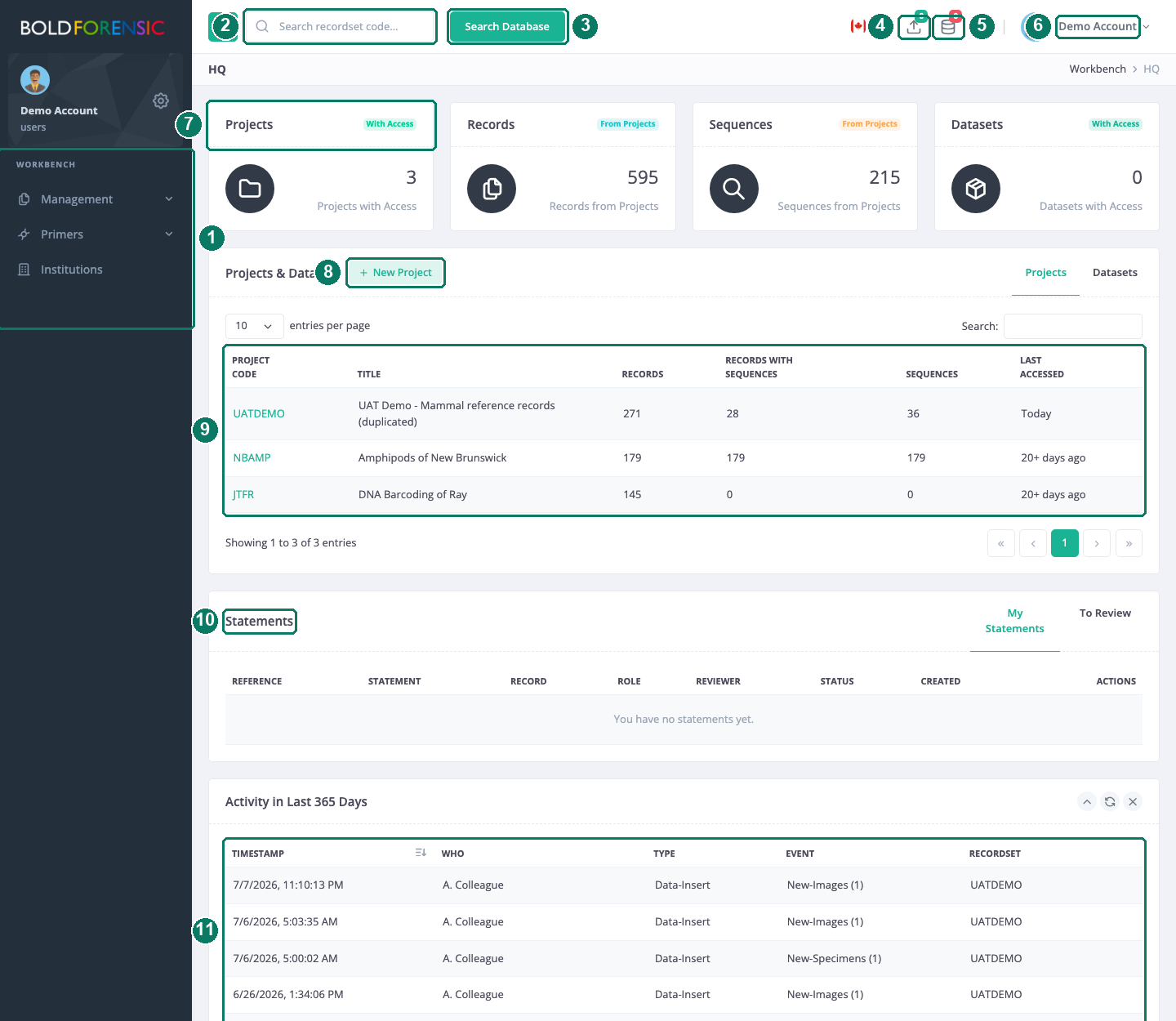
- Sidebar
- Recordset code box: type a code and press Enter
- Search Database opens the record search
- Uploads drawer
- Analysis panel
- User menu
- Summary cards
- New Project
- Projects & Datasets table; the code opens the console
- Statements card
- Activity table (names shown here are masked)
Four cards along the top give totals:
| Card | What it counts |
|---|---|
| Projects | Projects you are a member of |
| Datasets | Datasets you are a member of |
| Records | Records in those projects |
| Sequences | Sequences in those projects |
Records and sequences are counted from projects only, because a dataset's records already belong to projects and would otherwise be counted twice.
The Projects & Datasets card lists your recordsets in two tabs, with code, title, records, records with sequences, sequences and Last Accessed. The code is a link to the recordset console. The New Project and New Dataset buttons on this card create a recordset (see Projects and datasets explained).
The Activity in Last 365 Days table lists events on your recordsets: when, who, the type of action, the event with a count, and which recordset.
The Map card plots the collection sites of the records in the recordsets listed above. HQ also carries the statements card, described in Statements and deponents.
Good to know: The cards count every recordset you belong to, but the table lists only recordsets that someone opened in the last 365 days, so the totals and the table can disagree. Last Accessed means opened by anyone, not by you. The activity table is rebuilt hourly, so an event can take up to an hour to appear. The refresh icon on the activity and map cards does not reload anything, and the close icon only hides the card until the page is reloaded.
The sidebar
The Workbench section of the sidebar depends on the page you are on:
- Back to HQ is always present.
- Management holds Create New Project, Create New Dataset, Properties, Move Records to Another Project, Add Records to Dataset and Remove Records from Dataset.
- Data Upload and File Upload appear on project pages, because records and files are always added to a project.
- Data Analysis, Data Visualization and Data Download appear on recordset pages and search results, because they act on the records in front of you.
Super Users also see a Platform Management section (Users, Projects, Datasets, Analysis, Submissions, Publications, Statements, Controlled Terms). Other users cannot open those pages.
The hamburger button in the top bar condenses the sidebar to icons, or opens it as a slide-out menu on a narrow screen.
The top bar
From left to right the top bar holds the hamburger button, the Search recordset code… box, the Search Database button (the record search described in Searching records), the theme button and your avatar. Smaller windows hide some of these: the code box needs an extra-wide window, Search Database a medium one, and the theme button disappears at phone width.
Open a project or dataset by its code
Type a recordset's code into the Search recordset code… box and press Enter. Codes beginning DS- are treated as datasets; anything else as a project. You must be a member of the recordset, or a Super User, to open it this way; otherwise the workbench reports "Recordset Not Found".
The user menu
Your avatar in the top bar and the gear icon in the sidebar open the same menu: Profile, User Preferences, Security and Log Out, all described in Your account. The sidebar header and top bar show your name and group, for example users or Super User, and the footer shows when you last signed in.
Theme
The moon/sun button in the top bar switches between the light and dark theme. The choice lasts for the current browser tab only; it is not saved to your account.
System status
The System Status page at /status is public and needs no sign-in, so you can check it even when you cannot sign in; the public site's header and footer link to it. It shows a banner (All systems operational, Some services degraded or Some services unavailable), then a row for each of the four services: Workbench, Records & Search, File Storage, and Analysis & Jobs. Each row has its current state (Operational, Degraded, Unavailable or No data), one bar per day for the last 90 days and an uptime percentage. The data is refreshed every 30 minutes.
Good to know: The check confirms that a service answers, not that every function in it works. A service can show Operational while a particular action fails; report that through support.