Running an analysis
Choosing which records to analyse, picking a method, setting parameters and submitting.
How-toVideo walkthrough
An analysis takes a set of records, runs a method over their sequences on the analysis service, and returns a report and a package of result files. You start one from a project, a dataset or a search result, choose which records to include, pick a method, set its parameters and submit. The job then runs in the background and you follow it in the Analysis panel (see Tracking jobs and reading reports).
How it works
Every method is defined by a parameter form. When you submit, the workbench collects the form values, works out which records you ticked, counts them and hands the whole request to the analysis service as a job. The job's records are fetched when the job is packaged for execution, not at the moment you submit, so an edit made in between can be included.
Six analyses and two export jobs are available:
| Menu | Entry | What it does |
|---|---|---|
| Data Analysis | Tree Construction, Distance Summary, Barcode Gap, Sequence Composition, Sequence Identification, Diagnostic Characters | Sequence analyses with a report |
| Data Download | Specimen Records, Sequences | Export jobs that return a file package and no report |
For what each method answers, see Which method answers which question. The exports are also described in Downloading records, sequences and files.
Where you start
Open a project or dataset by its code (the recordset page) or run a search. On both pages the sidebar shows the Data Analysis and Data Download menus. On a recordset page the records available are the recordset's records; on a search results page they are the records the search returned.
Any member of a project or dataset can run analyses on it, whatever their access level, including read-only members. On a search results page any signed-in user can. The only limit on the records a job sees is what your account is allowed to read.
Choose which records to include
The records table on the page decides what goes into the job. All rows start ticked. Untick the rows you want to leave out, or clear the selection and tick only the rows you want. The page keeps a log of each select and deselect action and the server turns that log into the final record list when you submit, so the selection you see in the table is what the job receives.
At least one record must be ticked. If none is, the page refuses to submit and tells you so. The table must have finished loading before you submit; if it has not, you are asked to try again.
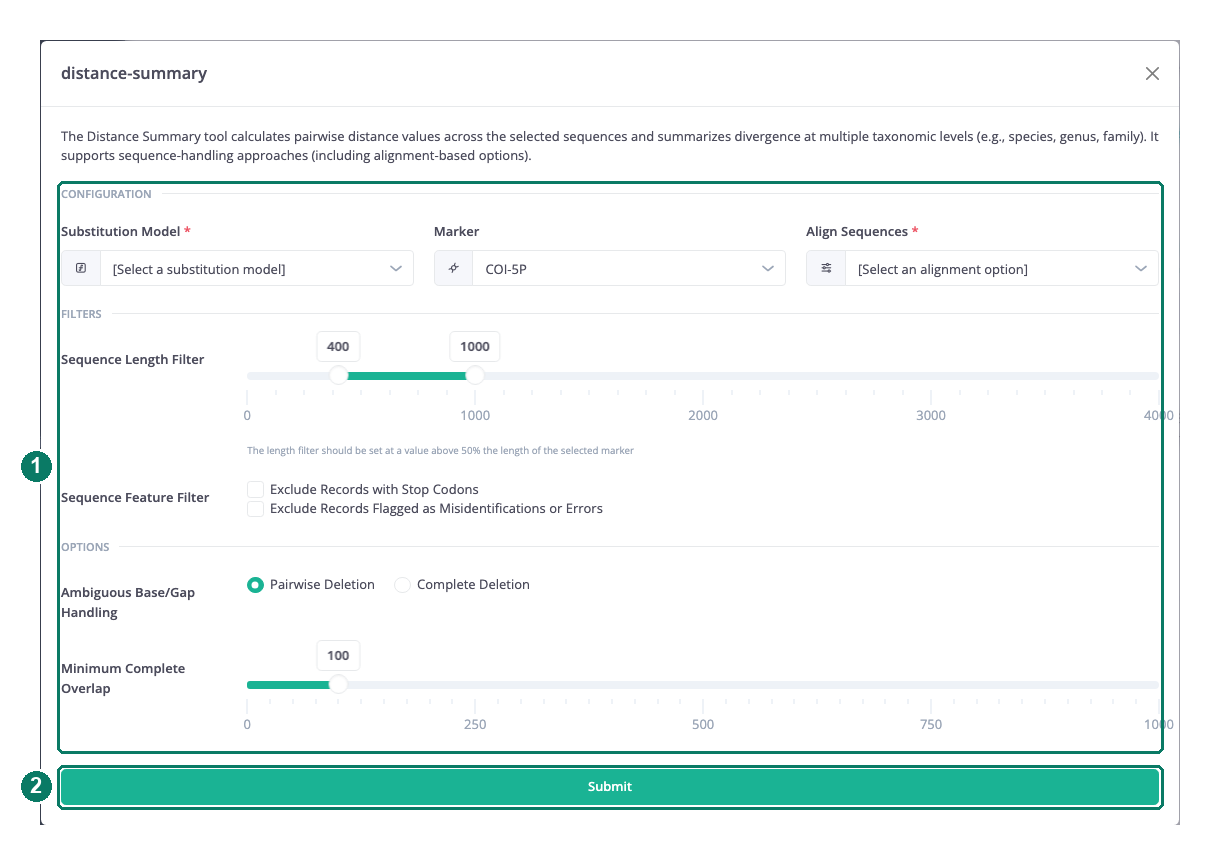
- Parameter fields, grouped in sections
- Submit
Pick a method and set the parameters
- Open Data Analysis (or Data Download) in the sidebar and choose an entry. The analysis form opens.
- Fill in the form. Fields are grouped into sections and may be dropdowns, radio buttons, sliders, range sliders or checkboxes. Values are limited to the ranges the sliders allow.
- Choose Submit. The form closes and a notification shows the new job's ID.
Parameters common to most methods:
| Parameter | What it means |
|---|---|
Marker |
The gene region to analyse. The list holds the markers present in the recordset, most common first, and the most common one is pre-selected. One marker per job. |
Align Sequences |
none passes sequences through unchanged; MAFFT aligns them first. The distance and character methods compare sequences column by column, so choose MAFFT unless your sequences are already aligned. This field is required and starts empty. |
| Length filter | A range slider sending a minimum and maximum sequence length in base pairs. The lower handle runs from 100 to 500 and the upper from 600 to 4000; the default is 400–1000. Records outside the range are left out. |
| Stop-codon and misidentification filters | Checkboxes offered on most forms. See the note below. |
Method-specific parameters (tree-building program, sensitivity, minimum records per group, export fields and format, and so on) are explained on each method's page under Which method answers which question.
Good to know
Good to know: Not every form option is applied by the job that runs. The stop-codon and misidentification checkboxes, the substitution model, the deletion mode, the tree style and several others are accepted by the form but ignored or only partly used. The report still lists them as submitted. Check Known limitations of the methods before relying on an option.
Good to know: The form title and the Analysis panel show the method's internal name (for example
barcode-gaporphylogenetic-tree), not the menu label. Tree Construction isphylogenetic-treeand Sequence Identification isidentification.Good to know: Every method quietly drops records that have no sequence or whose sequence is more than 10% ambiguous bases. The report's record counts show how many records went in and how many survived the filters.
Limit: Running an analysis does not require any particular access level. If your institution expects only certain people to run analyses on a recordset, that has to be managed outside the platform.