Attaching a file to one record
Enrich record: adding a single file from the record itself.
How-toScreenshots
Enrich record attaches one evidence file to the record you have open. It is the quickest way to add a single photograph, document, chromatogram, genetic fingerprint or lab notebook, because the file goes straight to BioStor while you wait and the record refreshes as soon as it is stored. For many files at once, use Uploading an evidence package.
How it works
Open a record from the recordset console. The Enrich record button sits in the Overview header of both the specimen tab and the genomics tab, and the tab you are on decides which kinds of file are offered:
| Tab | Types offered |
|---|---|
| Specimen | Specimen Image, Specimen Documentation |
| Genomics | Chromatogram, Genetic Fingerprint, Lab Notebook |
The button opens the Enrich form in a separate window, headed with the record's Process ID and a summary of the specimen (sample ID, taxonomy, place, institution) so you can confirm you have the right one. The record's Process ID is added to the upload automatically; you never type it.
Attach a file
- On the record, choose Enrich record.
- Choose the type. For Specimen Documentation, also choose the Document Category: Specimen Documentation, Chain of Custody, Collection Statement, Permit, Taxonomic Identification, Lab Worksheet or Scientific Paper.
- Fill in any of the optional fields that appear for the chosen type. These come from BioStor's definition of the profile; a chromatogram, for instance, offers marker and primer pick-lists.
- Pick the file. The picker and the form accept only the extensions for that type:
| Type | Accepted |
|---|---|
| Specimen Image | .jpg, .jpeg |
| Specimen Documentation (all categories) | .pdf |
| Chromatogram | .ab1, .abi, .scf |
| Genetic Fingerprint | .fsa |
| Lab Notebook | .xlsx |
- Submit. The file is uploaded in one request. On success the button reads Done, the record view behind the window reloads, and the window closes itself a moment later.
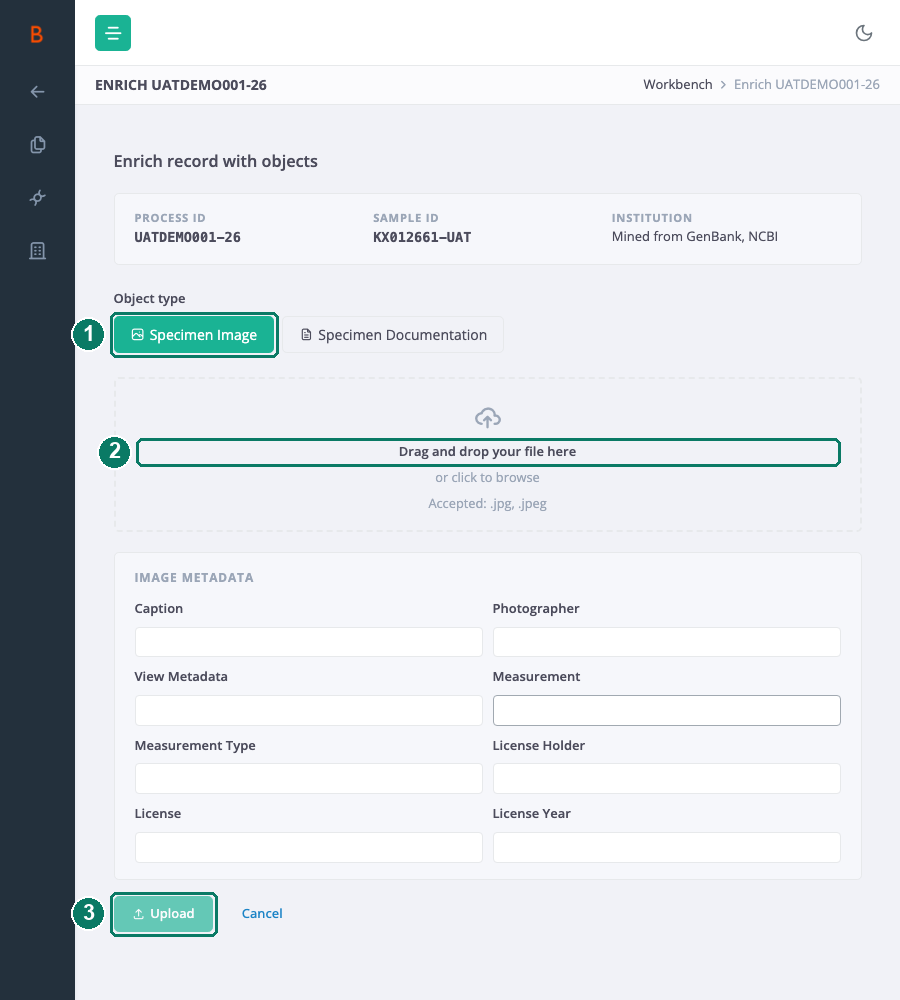
- Object type
- Drop zone for the one file
- Upload
What you see afterwards
The record's evidence count for that kind of file goes up straight away, because the count is refreshed as part of the upload rather than by a later process. The new file appears in the record's images, documents, traces, genotype files or spreadsheets, as appropriate, and in the project-level image library or document list. An activity-log entry records that you added it.
If the upload fails, the form shows the reason and leaves your entries in place. A file of the wrong type is refused before anything is sent. If BioStor cannot be reached or rejects the file, the message says so and you can try again.
Good to know
Good to know: Enrich record does not go through the uploads drawer. There is nothing to track; the file is either stored by the time the window closes or the form has told you why not.
Good to know: Any signed-in user who can open a record can enrich it. The upload is not checked against your access to the project, so look at the record summary at the top of the window before you submit.
Good to know: The whole file is sent in a single request, unlike a package, which is sent in pieces. For very large files, put them in a package instead.
Good to know: FASTQ supporting reads cannot be attached this way, even though BioStor has a profile for them.