The recordset console
Counts, coverage, the compliance report, breakdowns and the records table.
ReferenceVideo walkthrough
The recordset console is the page you land on when you open a project or dataset. It summarises what the recordset holds, shows where records fall short, lists every record in a table, and is the starting point for opening, moving, analysing and downloading records. Open it from a code on HQ or by typing the code into the top-bar box.
The summary cards
Three cards across the top give the headline figures, all computed from the records currently in the recordset.
| Card | Shows |
|---|---|
| Specimens | Number of records and the percentage that have a sequence |
| Compliance | Number and percentage of records at Bronze, Silver, Gold and Platinum |
| Records | Number and percentage with coordinates, with a country or ocean, and with images |
Good to know: The compliance tier is a value imported with each record. The platform does not grade records and nothing you add will change a record's tier. Use the compliance report, below, for a live view of what is missing.
Below the cards, the Summary card breaks the recordset down by class, order and family, by country or ocean and by province or state, as donut charts, and lists the markers present with the number and percentage of records carrying each. The Activity Report card, collapsed by default, lists membership events (who, event type, record count) for today, the last week, the last month or all time; events appear up to an hour after they happen. The Images card shows a carousel of the ten most recently added images.
An empty recordset shows a getting-started guide instead, with buttons for the batch and single-specimen uploads.
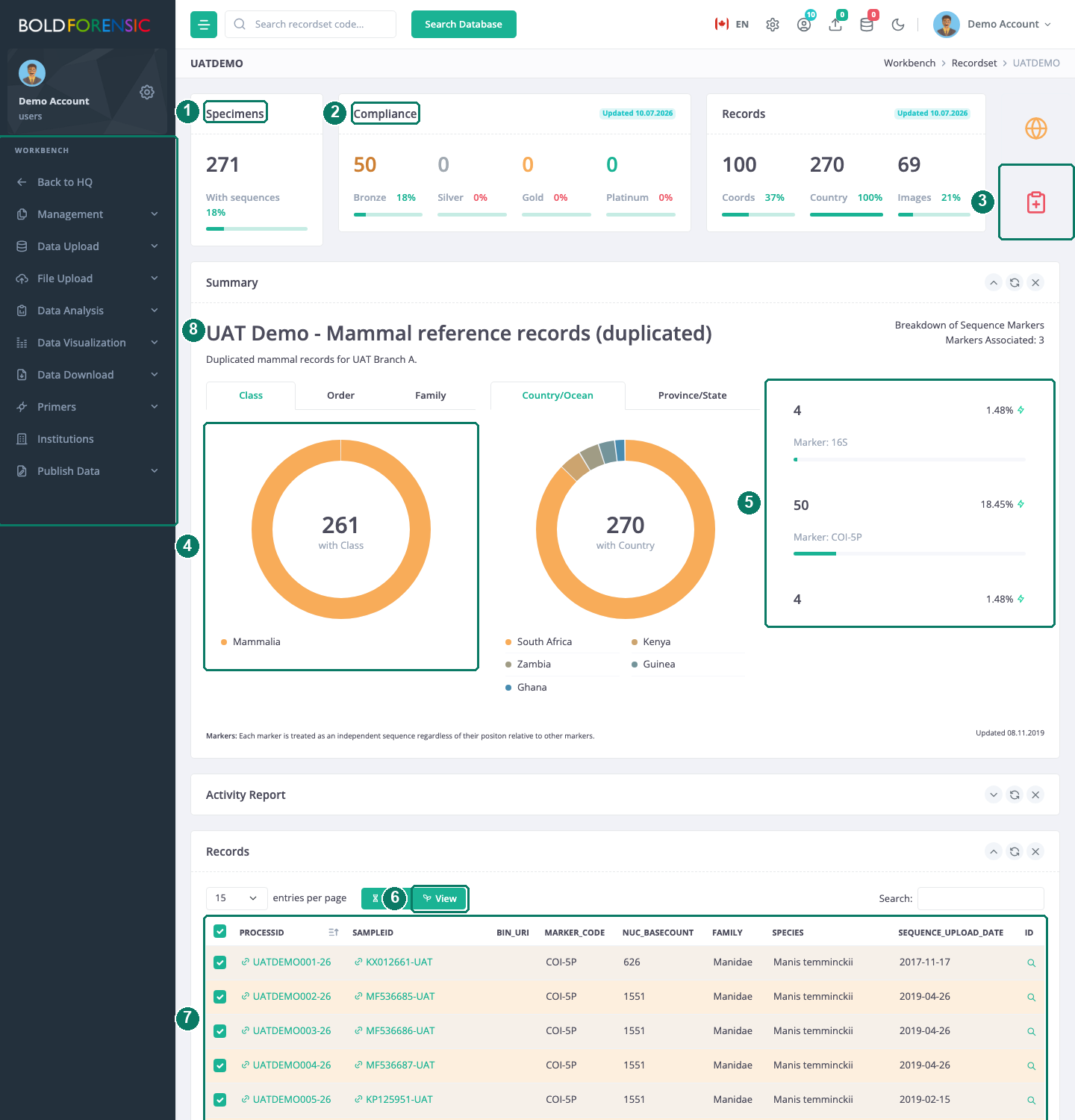
- Specimens card
- Compliance card: imported tiers
- Compliance Report quick link
- Taxonomic and geographic breakdowns
- Markers present
- View buttons for the selected rows
- Records table; every row is selected when the console opens
- Sidebar menus for upload, analysis, visualisation and download
The compliance report
The Compliance Report quick link opens a modal with a donut of the imported tiers and eight checks run live against the records:
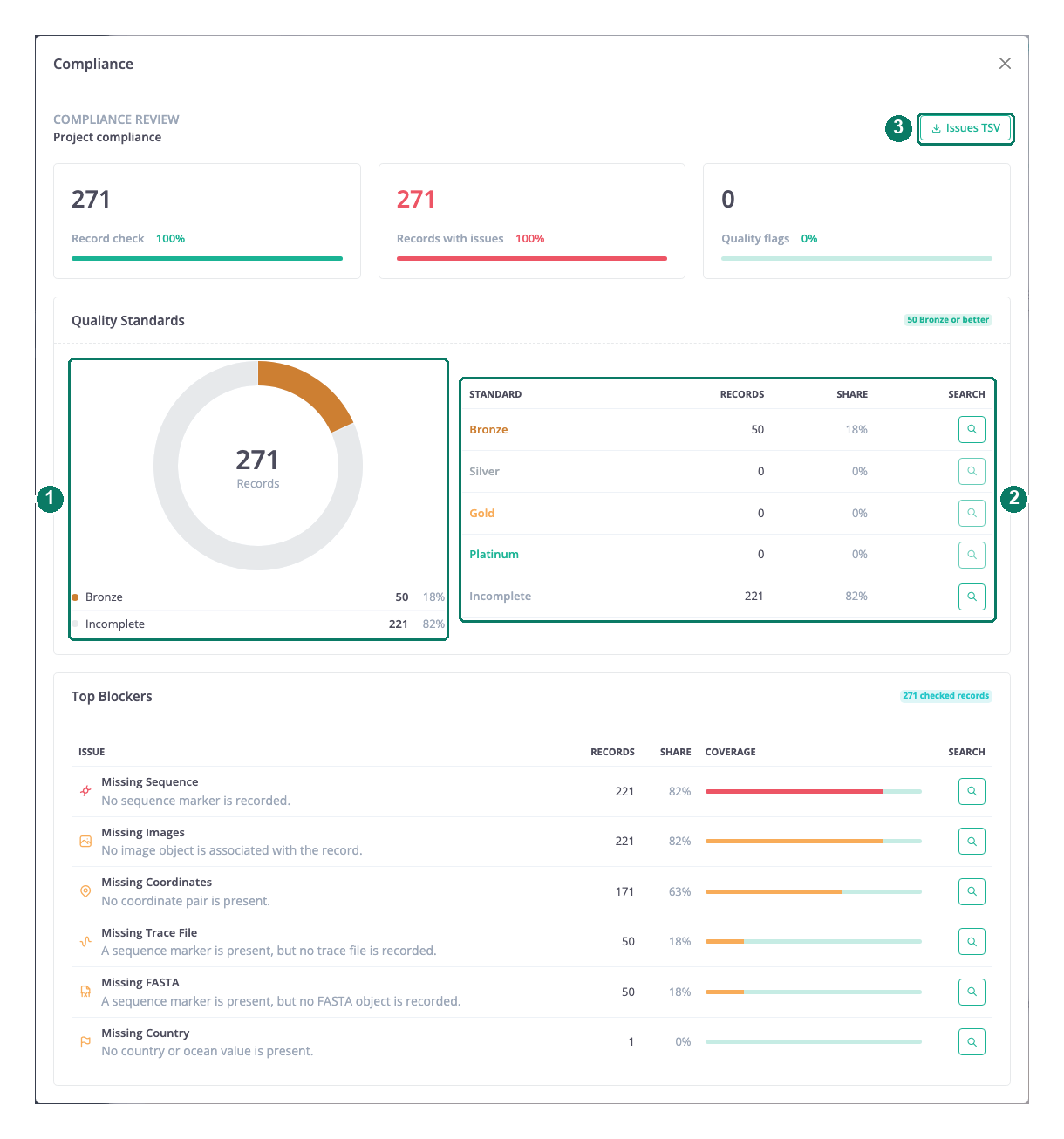
- Imported tiers
- Standards table with a search button per row
- Issues TSV download
| Check | A record is listed when |
|---|---|
Missing Sequence |
It has no sequence |
Missing Coordinates |
It has no collection coordinates |
Missing Country |
It has no country or ocean |
Missing Images |
It has no image |
Missing Trace File |
It has no chromatogram |
Missing FASTA |
It has no FASTA file |
Stop Codon Flag |
Its sequence translation contains a stop codon |
Short Sequence |
Its base count is under 500 bp |
Each check has a button that opens a search returning just those records, so you can work through them, and the full list of issues can be downloaded as a TSV file.
The records table
The Records card lists every record in the recordset in one table, with 15, 150, 1500 or all rows per page and a search box that filters as you type. The columns are the fields you chose as Primary Record Fields in User Preferences; the same choice applies to every console you open. Icon columns show which records have coordinates, images, chromatograms, documents, lab notebooks, supporting reads, genetic fingerprints and a compliance tier. An icon column disappears when no record in the recordset has that kind of file.
Each row has a checkbox. When the console opens, every row is selected. This matters because every action launched from the console applies to the selected rows: the View buttons, moving and adding records, analyses, visualisations and the specimen and sequence download jobs. To act on a subset, clear the selection first and tick the rows you want, filtering the table with the search box if that helps.
Good to know: With everything selected, a move sends the whole recordset to another project, and View opens a tab for every record. Check the selection before you act.
Click a Process ID to open the record's genomics tab, or a Sample ID to open its specimen tab. The two View buttons above the table do the same for all selected rows. Records open in the Records modal, described in What a record holds.
Actions from the console
The quick links and the sidebar collect everything you can do with the recordset:
- Map draws a static map of the recordset's collection points.
- Management moves selected records to another project, or adds them to or removes them from a dataset. See Moving records between projects and datasets.
- Data Upload and File Upload (projects only) add specimens, sequences and evidence files. See How data gets in.
- Data Analysis runs a method on the selected records. See Running an analysis.
- Data Visualization opens the distribution map or alignment browser for the selection. See Maps, images, alignments and traces.
- Data Download starts specimen or sequence download jobs for the selection, or packages all files of one type for the whole recordset. See Downloading records, sequences and files.
- Publish Data submits or reviews a publication request. See Projects and datasets explained.
Good to know
- The console opens only for members of the recordset and for platform administrators; anyone else sees a not-found page.
- Images in the carousel come from file storage and may show without a caption.