Maps, images, alignments and traces
The distribution map and alignment browser for a set of records, and the image, chromatogram, read and document viewers on a record.
ReferenceScreenshots
Checking a record against its evidence means looking at the sequence, the trace it was called from, the photographs of the specimen and the documents that accompany it, and seeing how the record sits among the others in the recordset. The workbench offers two kinds of view for this: views that open from the console for a set of records, and viewers inside the record detail for one record's files.
Views for a set of records
The Data Visualization menu on a recordset console (and on the Search page) opens a view in a pop-up window for the records selected in the records table. Every row is selected when a console opens, so the view covers the whole recordset unless you narrow the selection first. The view is built from the selection at the moment you open it; change the selection and open it again to update.
Distribution map
An interactive map of the selected records grouped by collection site, so you can see at a glance where the specimens come from and spot an outlier. You can filter by Taxon, by Geography (Country/Province) and with the Sequence Length Filter, and switch between five basemaps. Click a site to see the identifications and record identifiers collected there.
Good to know: The Exclude Records with Stop Codons and Exclude Records Flagged as Misidentifications or Errors options on this map do not currently exclude anything. The map tiles and the map library are loaded from external services, so the map needs internet access to those sites.
Alignment browser
A side-by-side view of the selected sequences for one Marker: a list of record identifiers, a position ruler and one row per sequence, all scrolling together. Sort the rows by species, genus, family, subfamily, order, Process ID or Sample ID, choose a Secondary Row Label, and apply the Sequence Length Filter. Use it to compare sequences by eye, find truncated or divergent ones, and see which records share a haplotype.
Good to know: Choose
None (use sequences as provided)under Align Sequences. TheMAFFToption is not available in the workbench and falls back to the unaligned sequences with a warning. The stop-codon and misidentification options do not exclude anything here either. If you need an aligned FASTA, use the sequence download job described in Downloading records, sequences and files.
Recordset map and images on the console
The Map quick link on the console draws a static map of all the recordset's collection points, and the Images card shows a carousel of the ten most recently added images. Both cover the recordset as a whole, regardless of the selection.
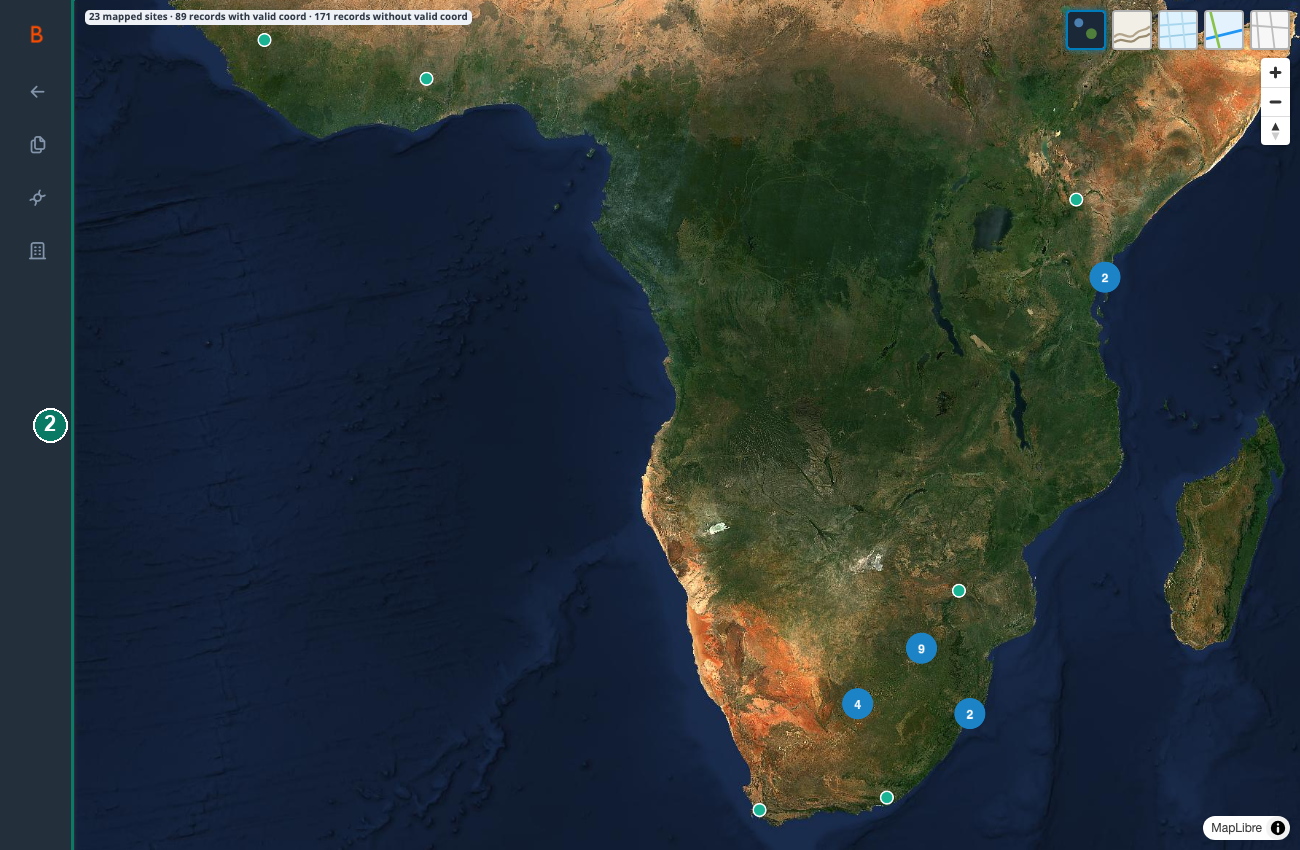
- Records grouped by collection site; click a site for its records
Viewers inside a record
Open a record from the records table (see What a record holds). Each viewer shows a preview of one file, its metadata, and a Download button for the original. Downloads go through a link that is valid for your session and that one file.
Images
The specimen tab's Visuals card shows the record's images in a carousel, alongside a map pin at the record's coordinates.
Chromatograms
On the genomics tab, the Traces section under each marker shows each chromatogram as a rendered image, with the trace date, the sequencing direction and the primers used, and a Download Trace button for the original file. The image is produced by the file store when the file is processed; there is no interactive trace viewer in which to scroll or re-call bases. Use it to confirm that the stored sequence matches a clean trace in the stated direction, and download the original if you need to examine it in trace software.
FASTQ graphs
The FASTQ section under a marker shows a read-quality graph for each supporting-reads file, with its direction, and a Download FASTQ button. Supporting reads cannot be uploaded from the workbench, so this section shows only files that were stored by other means.
Good to know: The chromatogram and FASTQ sections depend on a lookup against an external service. If that service cannot be reached, both sections are empty for every record, although the files are still stored and still count on the console.
Genotype files
The Genotype Data card on the genomics tab lists the record's genetic-fingerprint files, each with a graph image, its metadata and a Download FSA button.
Documents and lab notebooks
The specimen tab's Documents card shows each attached PDF with a thumbnail of its first page, its metadata (document type, title, version, page count, confidentiality level and dates) and a Download Document button. The genomics tab's Spreadsheets card does the same for lab notebooks, with a Download Spreadsheet button.
How the views stay tied to the recordset
Every one of these views is built from a record-set token that the workbench creates for the records you selected, or for the one record you opened, and your access to those records is checked when the token is made. A view does not include records from outside the recordset, and a link to a file preview or download does not work in another session.