Adding or editing one specimen
The research and chain-of-custody forms, and editing a record afterwards.
How-toScreenshots
The specimen forms add one record to a project, or edit a record that is already there. Use them when you have a single specimen to register, or when a batch spreadsheet would be more trouble than typing the values in. Unlike a batch upload, a form submission is loaded while you wait and does not go through an ingest job.
The three forms
All three forms are in a project's side menu under Data Upload. They share the same fields and the same submission path; they differ in which panels they show and in what order.
| Form | Panels, in order | Use it for |
|---|---|---|
| Single Specimen | Specimen Details, Forensic Details, Taxonomy, Collection & Location, Advanced Forensic | The general form; also the form used for editing |
| Research Record | Specimen Details, Taxonomy, Collection & Location | Reference or research specimens with no custody trail |
| COC Record | Forensic Details first, then Specimen Details, Taxonomy, Collection & Location, Advanced Forensic | Casework, where custody is captured at intake before the specimen is characterised |
The research form omits the forensic panels entirely, including the forensic fields that the other forms place in the specimen and taxonomy panels. The chain-of-custody form asks the same questions as the general form, but puts the custody panel first.
Fields come from the platform's data model; see Field dictionary. Four are required: Sample ID, Phylum, Institution and Country/Ocean. Institution, geography and taxonomy fields offer autocomplete from the platform's registries; choosing a suggestion links the record to that registry entry rather than storing free text. Process ID, specimen ID and dates of creation are generated by the system and are not on the form.
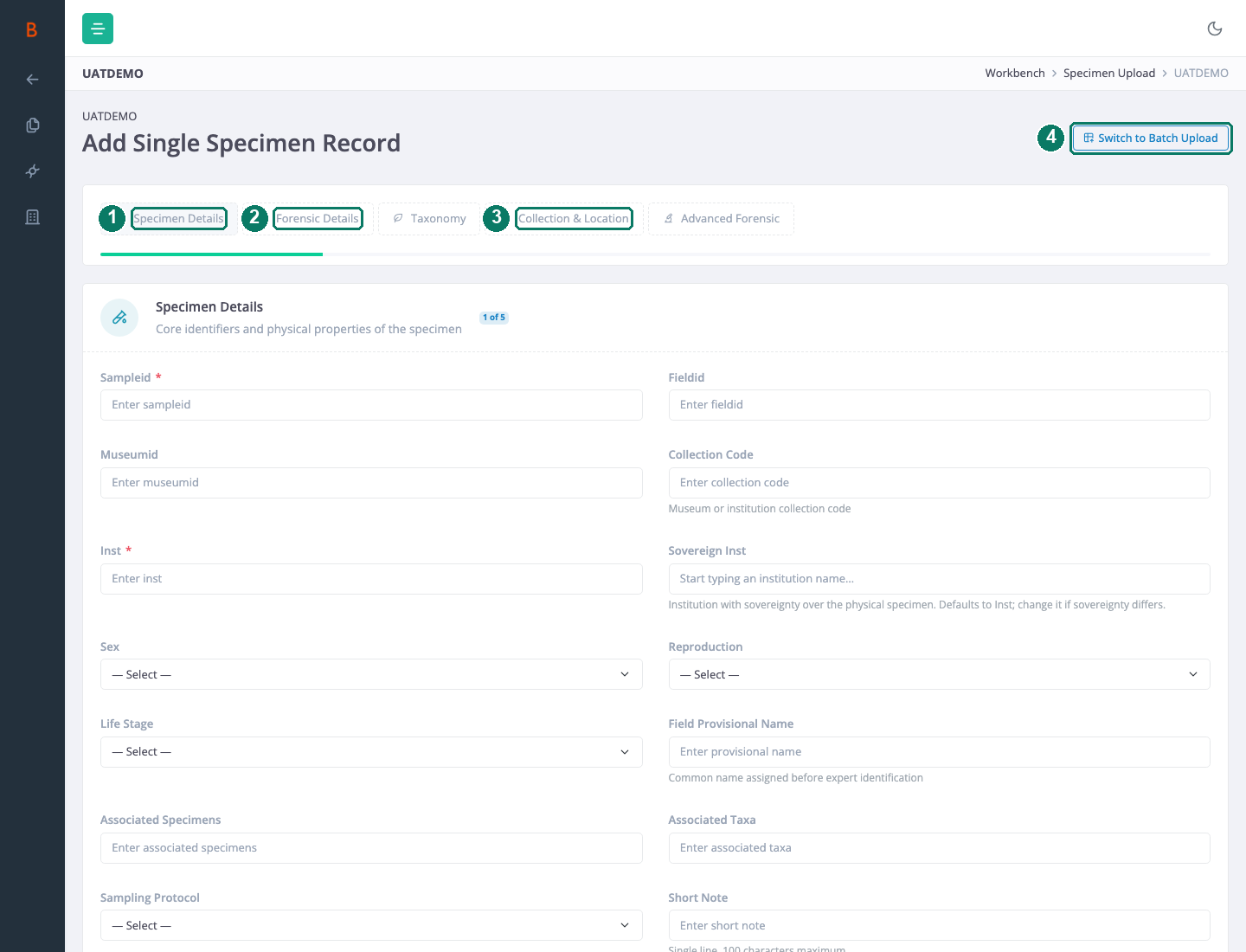
- Specimen Details panel
- Forensic Details panel
- Collection & Location panel, where coordinates are entered
- Switch to Batch Upload
Add a specimen
- Open the form you need from Data Upload.
- Work through the panels. Required fields are marked and the browser checks them, along with the format rules for each field, before you can submit.
- Submit. The record is loaded straight away; the request waits up to 30 seconds for the load to finish.
- You are returned to the project with a confirmation that the record has been submitted. It may take up to a minute to appear in the recordset.
Loading needs the same access as a batch upload: a level that allows editing specimens (Project Manager, Edit All or Edit Specimens/Read Sequences), or a platform administrator.
Edit a specimen afterwards
Open the record from the recordset console and choose Edit record. The Single Specimen form opens pre-filled with the record's current values; change what you need and submit. The edit is applied as an upsert against the record's Process ID.
Edit record is shown only to people who may change the record: Project Manager, Edit All, Edit Specimens/Read Sequences, Dataset Manager or Super User. The record store checks again when the edit is saved.
Coordinates
Good to know: Always enter both latitude and longitude in the Collection & Location panel. If you leave the collection coordinates blank, the record is saved with a coordinate of 0,0 rather than with no coordinate, and that is what the map and any later analysis will use.
Good to know: The chain-of-custody start coordinate on the forensic panel is not stored. Do not rely on that field to record where custody began; keep that location in a field that is saved.
Good to know
Good to know: If the form reports that processing timed out, do not resubmit straight away. The load can still complete after the timeout. Check the project for the record first; submitting again creates a duplicate.
Good to know: The browser enforces the required fields and format rules. The server itself only insists on a Sample ID (or, for edits, a Process ID), so a submission made outside the form can load with fewer fields than the form requires.