Generating a statement
Choosing the record, type and deponent; previewing; submitting for review.
How-toScreenshots
You generate a statement from the record it concerns. The Generate Statement form asks for the statement type, the deponent and a reviewer, fills in what it can from the deponent's profile and the record, lets you type the rest, shows you a draft, and then submits the statement for review. This page walks through those steps. For what the types mean and where the content comes from, read Statements and deponents first.
Where to start
Open the record. On a recordset page or a search results page, open the record from the records table and use Generate statement in the toolbar of the record tab. The same button is on a record's own specimen and genomics pages. Any signed-in user who can open the record can start a statement.
Next to the button are status chips for any statement already queued or approved for this record, such as Analyst: Pending review. Each chip links to that statement's PDF, which only opens for the people involved in it.
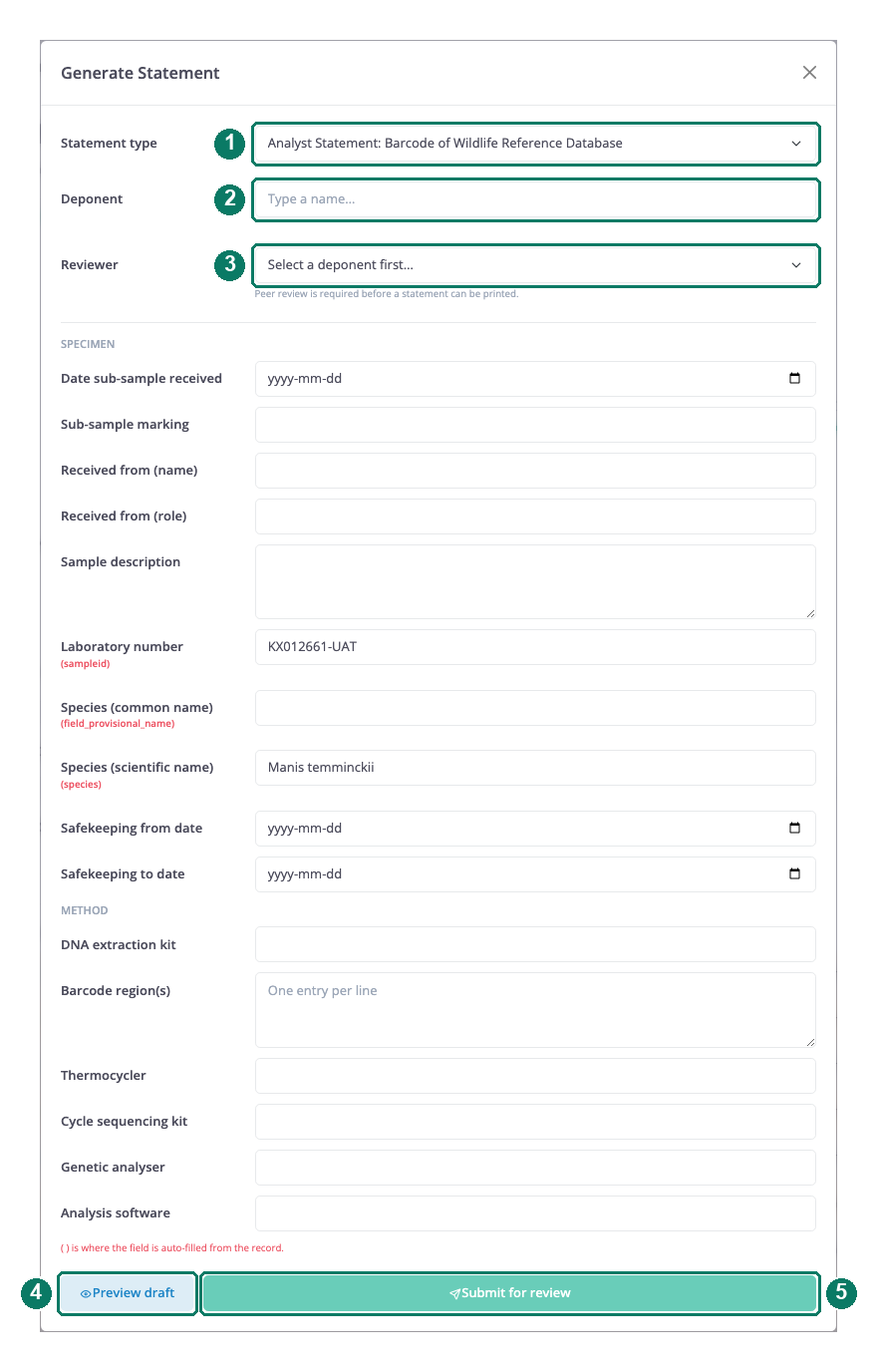
- Statement type
- Deponent, chosen by name
- Reviewer, available once a deponent is chosen
- Preview draft
- Submit for review
Fill in the form
- Statement type. Choose Analyst, Sample Collection or Evidence Seal Break. The form fields below change to match.
- Deponent. Start typing a name and pick the person from the list. The list holds every person flagged as a deponent. A line under the field confirms the pick: name, job title, employer and how many qualifications their profile holds. If you edit the text after picking, the selection is cleared until you pick again.
- Statement fields. Fields are grouped (specimen, method, photographs). Those with a red source name under the label are pre-filled from the record; check them and correct them if the record is wrong or incomplete. Type the others. List fields such as barcode regions take one entry per line.
- Reviewer. Once a deponent is chosen the list fills with the people who may review: deponents who hold an active account, excluding the deponent you chose. You may appear in this list yourself. If nobody is eligible, the form says so; ask an administrator to flag a colleague as a deponent.
Submit stays disabled until a reviewer is selected.
Preview the draft
Preview draft renders the statement as a PDF stamped DRAFT and opens it in a new tab. Nothing is saved. Use it to check the wording, the record values and the placeholders: any field without a value prints in red as <Field label>, and nothing stops you submitting with placeholders in place.
Good to know: The preview is the full document. It contains the deponent's identity number, age, gender, email, employer address and phone and their qualifications, taken from their profile. Any signed-in user can preview any deponent. Choose deponents with care and do not use the preview to look up someone's details.
Submit for review
Submit for review stores the statement. The platform gives it a reference of the form STMT-YYYY-NNNNN, saves a snapshot of every value, renders a PDF stamped PENDING REVIEW and assigns it to the reviewer you chose. A notification confirms the reference. From this point the content is fixed: later changes to the profile or the record do not affect it.
The reviewer is not notified by email or otherwise. Tell them, so they know to look in their To Review tab.
One active statement per record and type
A record may have only one pending or approved statement of each type at a time. If one exists, the form shows a warning with its reference and disables Submit; the server refuses a duplicate too.
Good to know: The warning says to cancel the existing statement from your HQ statements card. That works only while it is pending. An approved statement cannot be cancelled by its preparer; it is released only when an administrator deletes it or when it is purged 30 days after creation. The HQ card lists only statements you prepared, swear or review, so if the blocking statement is someone else's, ask an administrator.
Where the statement appears afterwards
- On the record, as a status chip next to Generate statement.
- On the HQ page, in the Statements card, under My Statements: every statement you prepared or that is sworn in your name, with a role chip (Prepared, Deponent or Both), the reviewer, the status, the creation time and the available actions. The eye icon opens the stored PDF. While the statement is pending you can cancel the review request with the X icon.
- For the reviewer, under To Review in the same card.
What happens next, including approval, rejection, printing, signing and how long the statement is kept, is in Review, signing and retention.